Connect to OSCAR EMR
Set up the OSCAR EMR integration to push clinical notes directly to patient charts and pull patient context into your transcription sessions.
Transcribe Health integrates directly with OSCAR EMR (including OSCAR Pro and Open-O) using the OAuth 1.0a REST API. Once connected, you can push finalized clinical notes to patient charts and pull patient context (allergies, medications) into your transcription sessions.
Prerequisites
- You must be an Owner or Admin of your organization in Transcribe Health
- Your OSCAR instance must have the REST API enabled (
ModuleNames=RESTin oscar.properties) - An OSCAR administrator must register Transcribe Health as a REST Client in OSCAR (see Step 1 below)
Part 1: Register Transcribe Health in OSCAR
Before connecting from Transcribe Health, your OSCAR administrator needs to create API credentials.
1. Open OSCAR Administration
Log into your OSCAR EMR instance and click Administration in the top navigation bar. In the admin sidebar, expand the Integration section and click REST Clients.
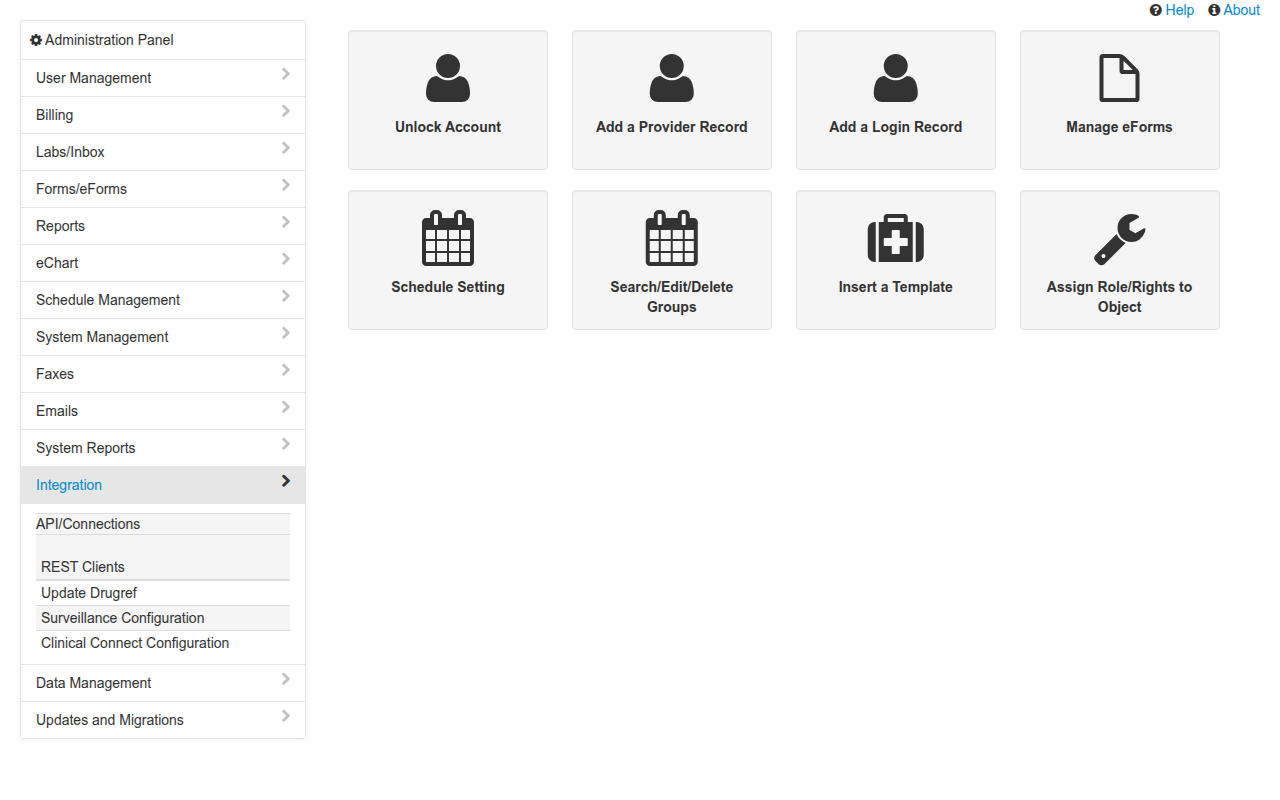
2. Register a new REST Client
On the Manage Clients page, click Add New and fill in:
- Application Name:
Transcribe Health - Callback URL:
https://transcribe.health/api/ehr/v1/ehr/callback/oscar(replace with your Transcribe Health instance URL)
Click Save. OSCAR will generate a Consumer Key and Consumer Secret.
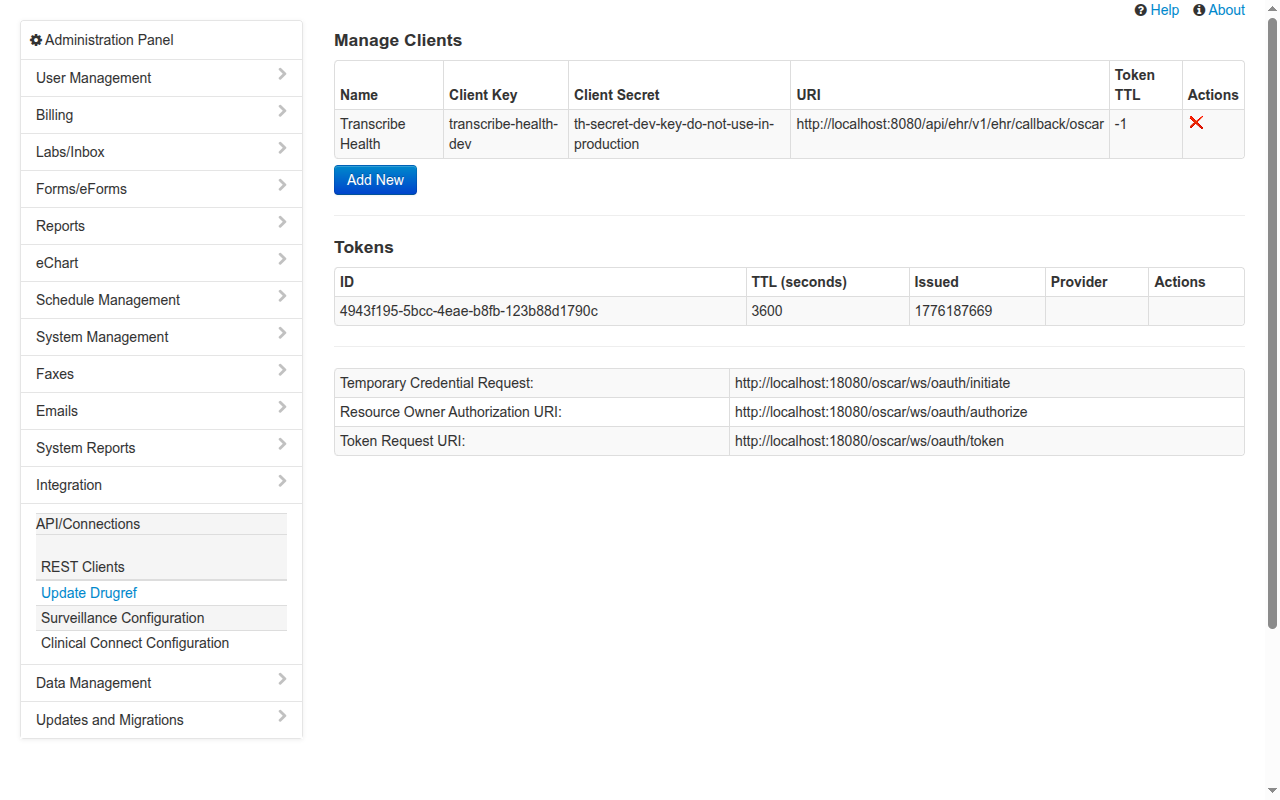
Copy the Client Key and Client Secret - you'll need them in the next section.
Part 2: Connect from Transcribe Health
4. Open Integrations settings
In Transcribe Health, navigate to Organization Settings and click the Integrations tab. You'll see Oscar Pro listed under Available Integrations with a Connect button.
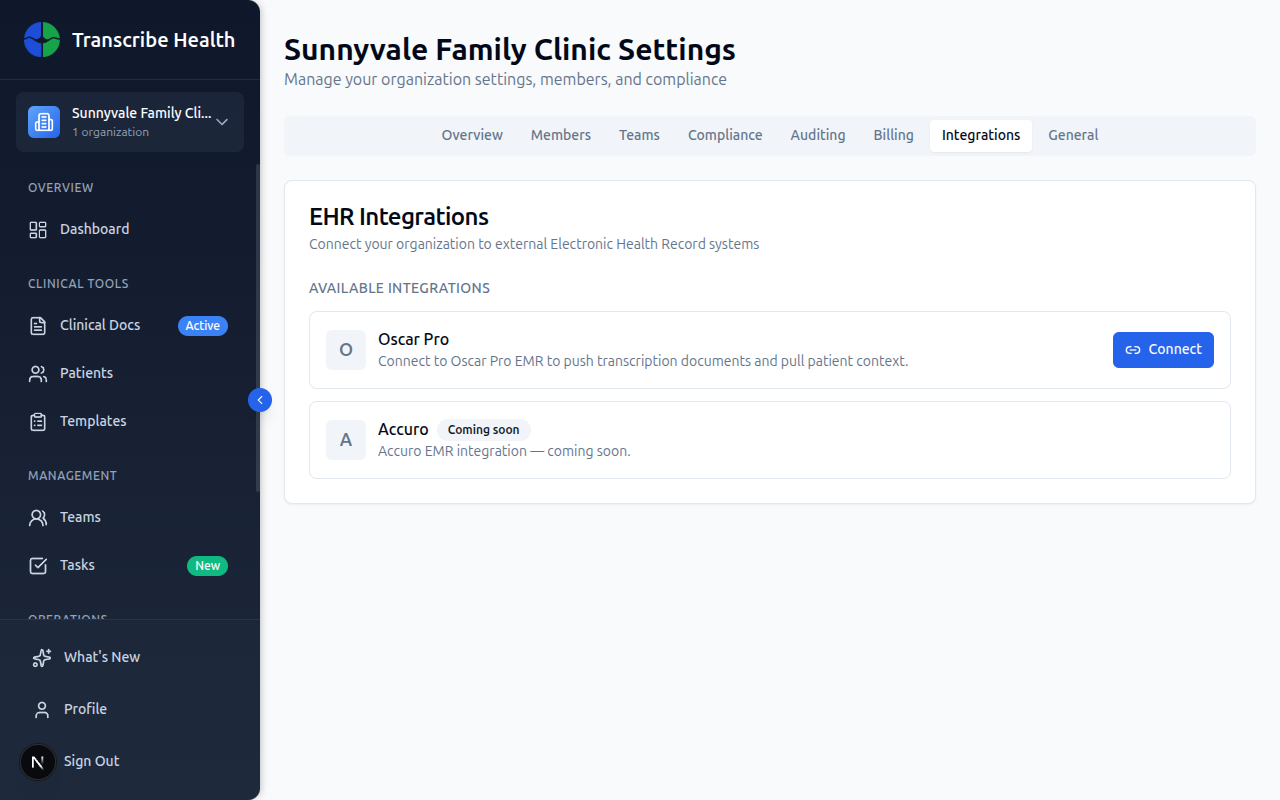
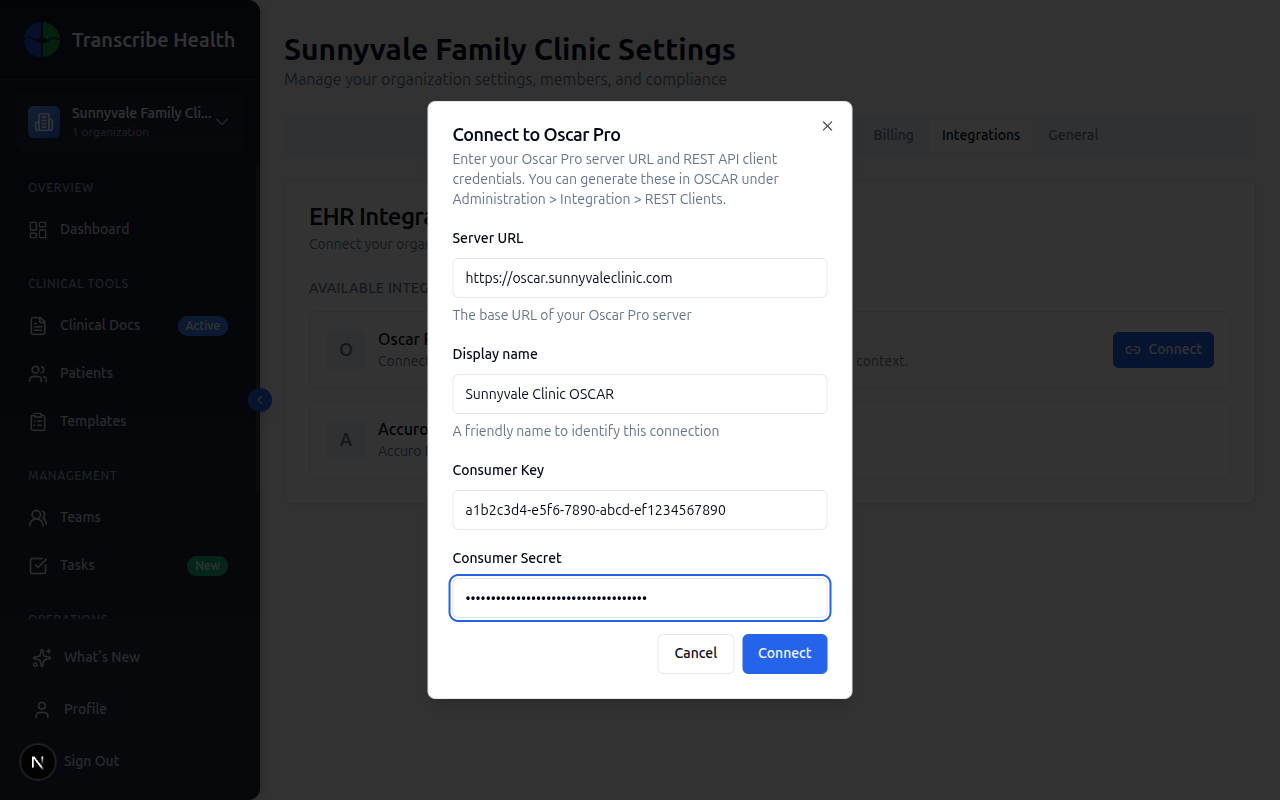
5. Click Connect and enter credentials
Click the Connect button on Oscar Pro to open the connection dialog.
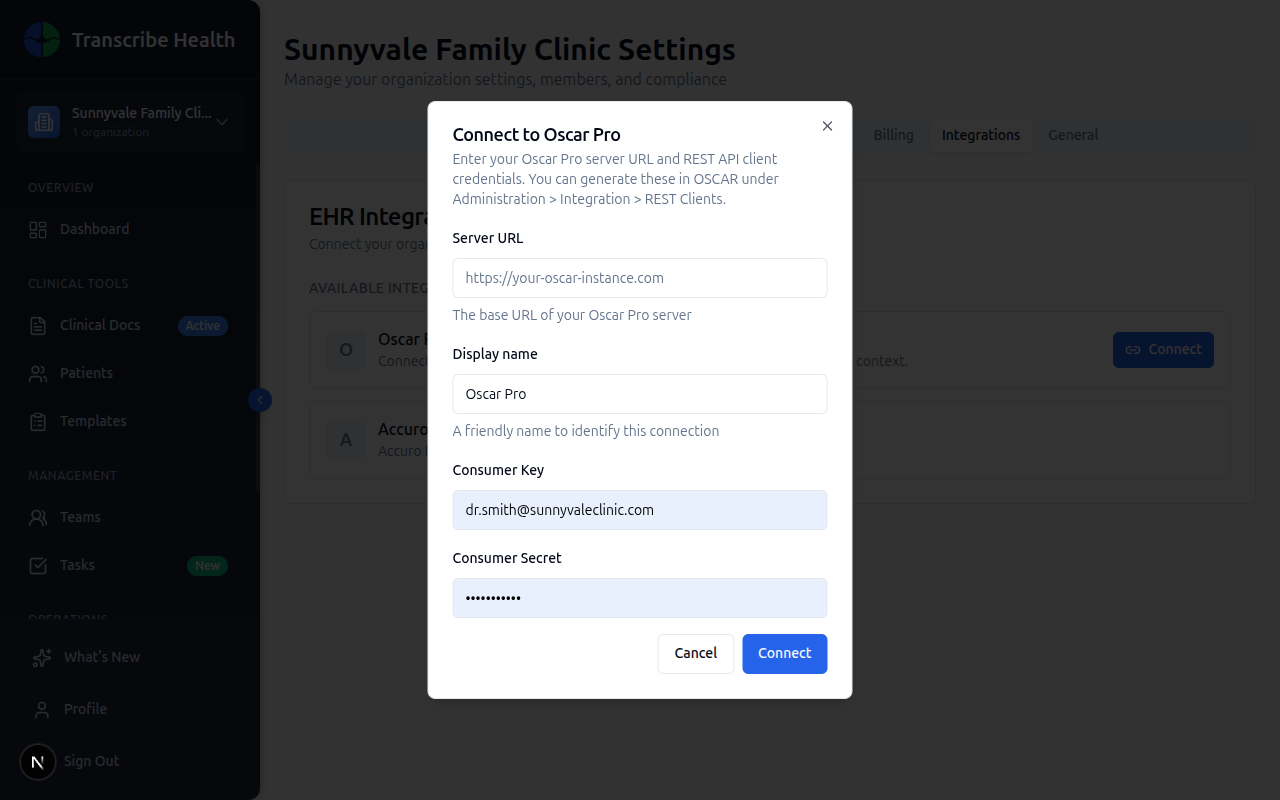
Fill in the fields:
- Server URL: Your OSCAR instance URL (e.g.,
https://oscar.yourclinic.com) - Display name: A friendly name like "Sunnyvale Clinic OSCAR"
- Consumer Key: The key from Step 3
- Consumer Secret: The secret from Step 3
6. Authorize in OSCAR
Click Connect. A new window opens showing OSCAR's authorization page. Log into OSCAR if prompted, then click Allow to authorize Transcribe Health to access the API.
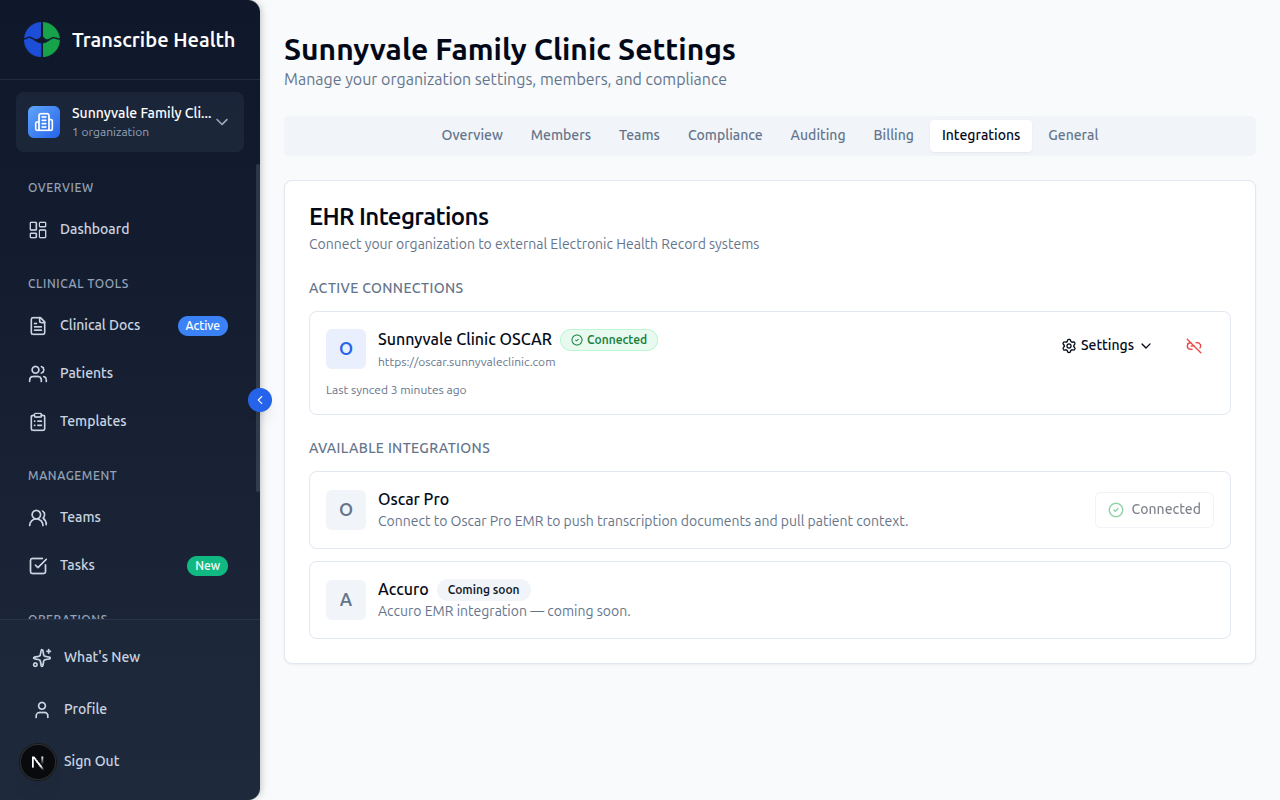
The window closes automatically and your connection appears under Active Connections with a green Connected badge.
Part 3: Link Patients
Before pushing notes, you need to link your Transcribe Health patients to their OSCAR demographic records.
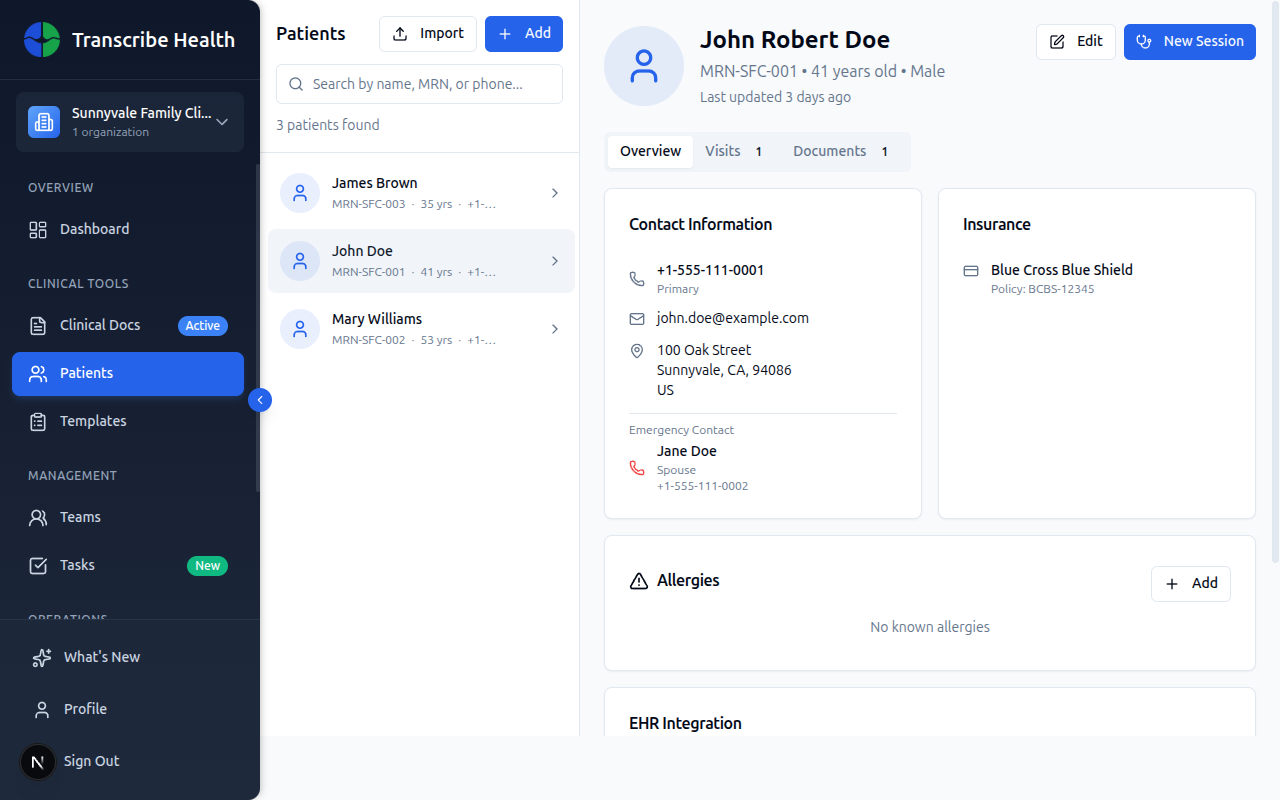
7. Open a patient's detail page
Navigate to Patients in the sidebar and click on the patient you want to link.
8. Link to EHR Patient
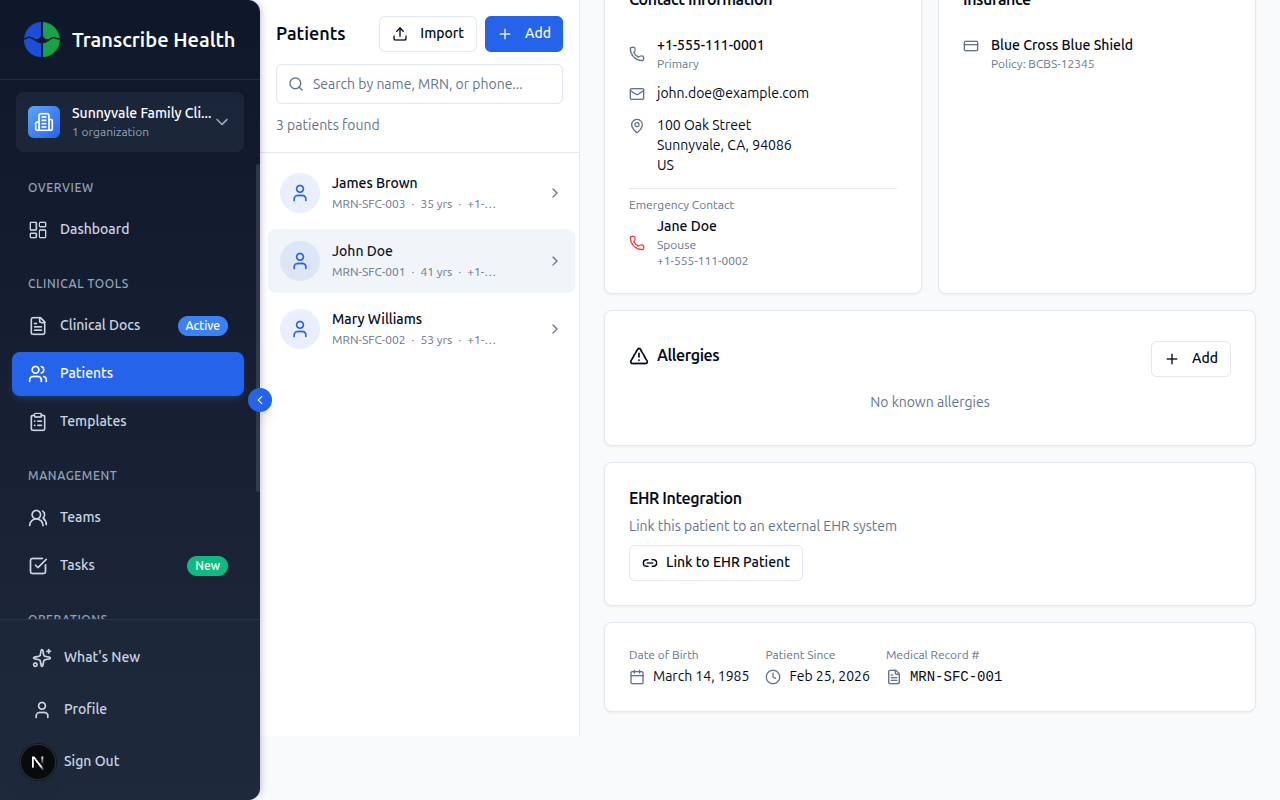
Scroll down to the EHR Integration section. Click Link to EHR Patient, search for the patient by name in OSCAR, and click Link on the matching record.
Part 4: Push Clinical Notes
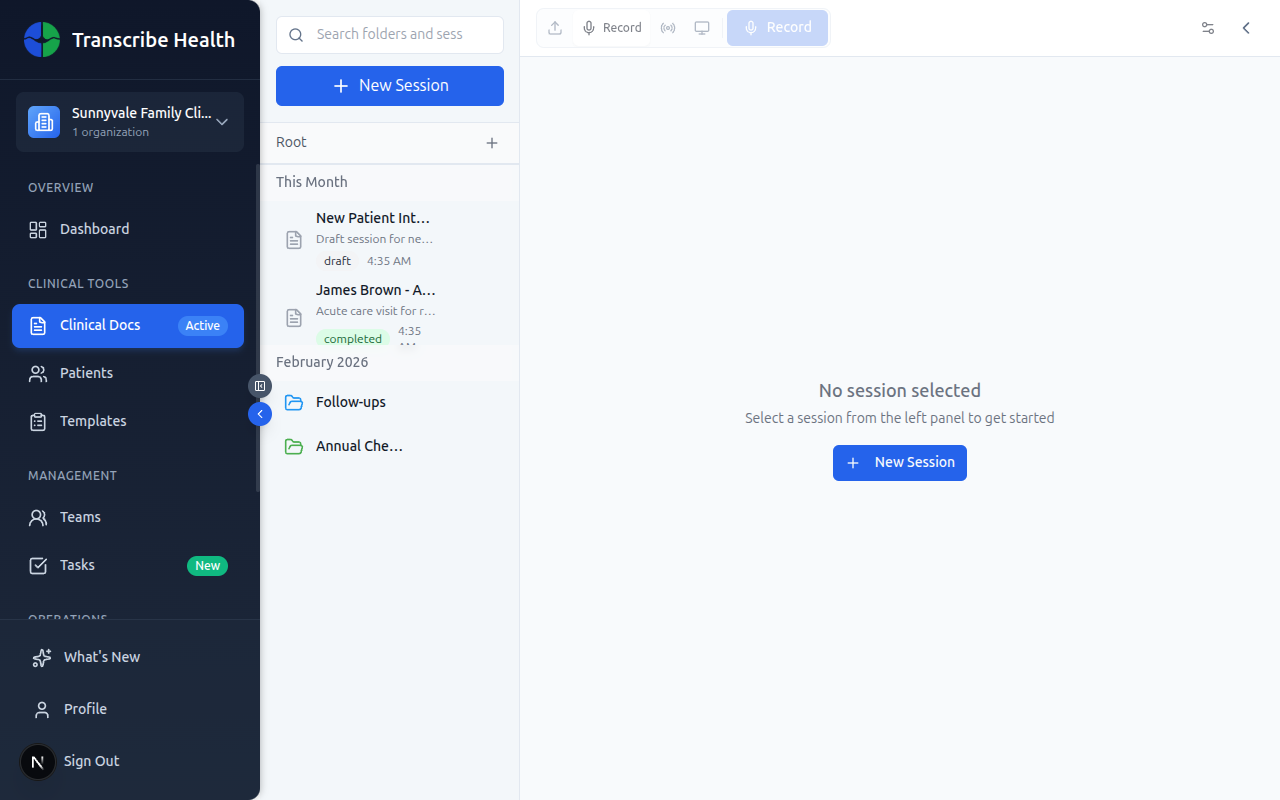
9. Open a session with a signed document
Navigate to Clinical Docs and open a session that has a signed document. The document must be signed (finalized) before it can be pushed to the EHR.
10. Push to EHR
On the signed document, click the ⋯ (more actions) menu and select Push to EHR. The note content is sent to the patient's chart in OSCAR. You'll see:
- A success toast confirming the push
- A green Synced to EHR badge on the document
If the push fails, you'll see a red badge with an option to retry.
What Gets Pushed
When you push a clinical note, the following is sent to OSCAR:
- The full note content (SOAP format, free text, or whatever template you used)
- The note title
- A timestamp
- Association with the linked OSCAR patient
The note appears in the patient's encounter history in OSCAR.
Troubleshooting
"Failed to connect" error
- Verify the Server URL is correct and accessible from the internet
- Confirm the Consumer Key and Consumer Secret match what OSCAR generated
- Ensure
ModuleNames=RESTis set in your OSCAR'soscar.propertiesfile
"Push failed" error
- Verify the patient is linked to an OSCAR record
- Check that your OSCAR connection is still Connected (tokens may need to be re-authorized if they expire)
- Ensure the OSCAR user who authorized the connection has permission to create encounter notes
Connection shows "Error" status
- The OAuth token may have expired. Disconnect and reconnect to re-authorize.
- Check that OSCAR's REST API module is enabled and the instance is reachable.
Related Articles
Can't find what you're looking for?
Our team is here to help. Reach out and we'll get back to you within 24 hours.
Contact Support