Fill PDF Forms with AI
Upload PDF forms and let AI automatically fill them using data from your transcription sessions.
Transcribe Health can automatically fill PDF forms using data from your transcription sessions. Upload any fillable PDF form - medical reports, referral forms, insurance documents - and AI will extract the relevant information from your clinical notes to populate the fields.
How it works
- Upload a PDF form as a template
- AI detects the form fields automatically
- During a transcription session, click Fill Form to let AI populate the fields from the session transcript
- Review, edit, and download the completed PDF
Uploading a PDF form template
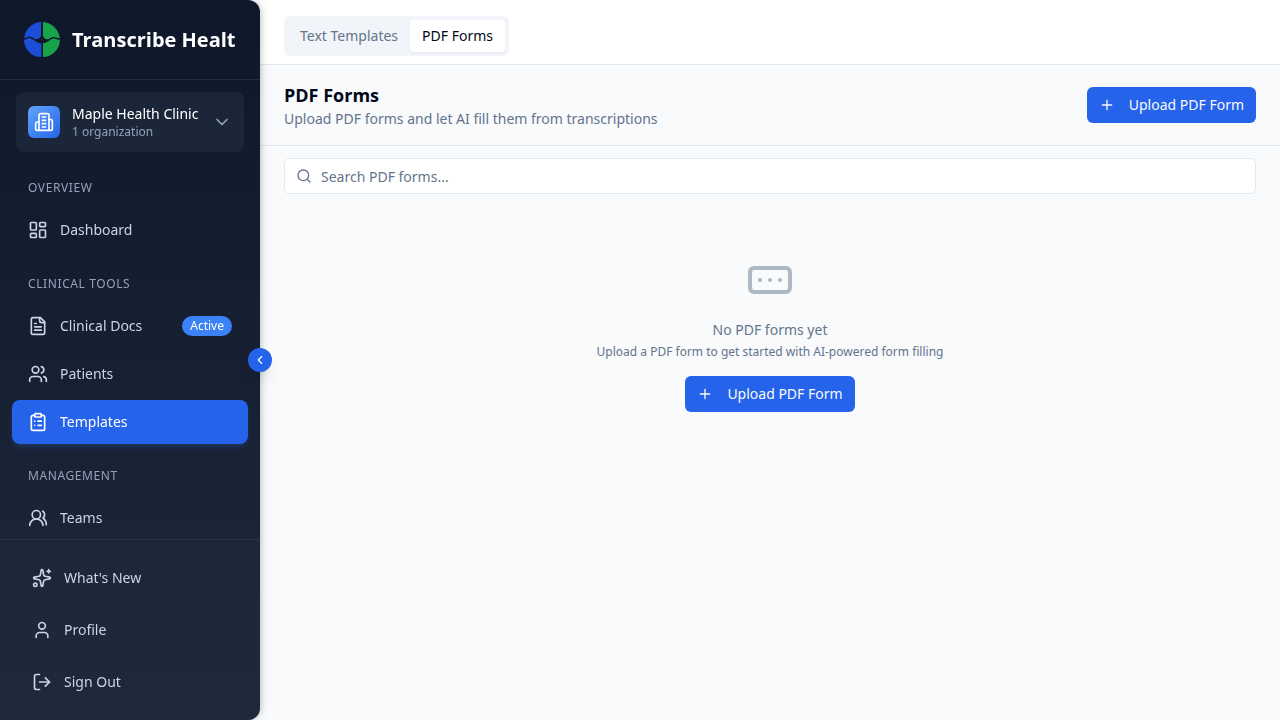
1. Open the PDF Forms page
Expand Sessions in the sidebar and click PDF Forms.
2. Click Upload PDF Form
Click the + Upload PDF Form button to start the 3-step upload wizard.
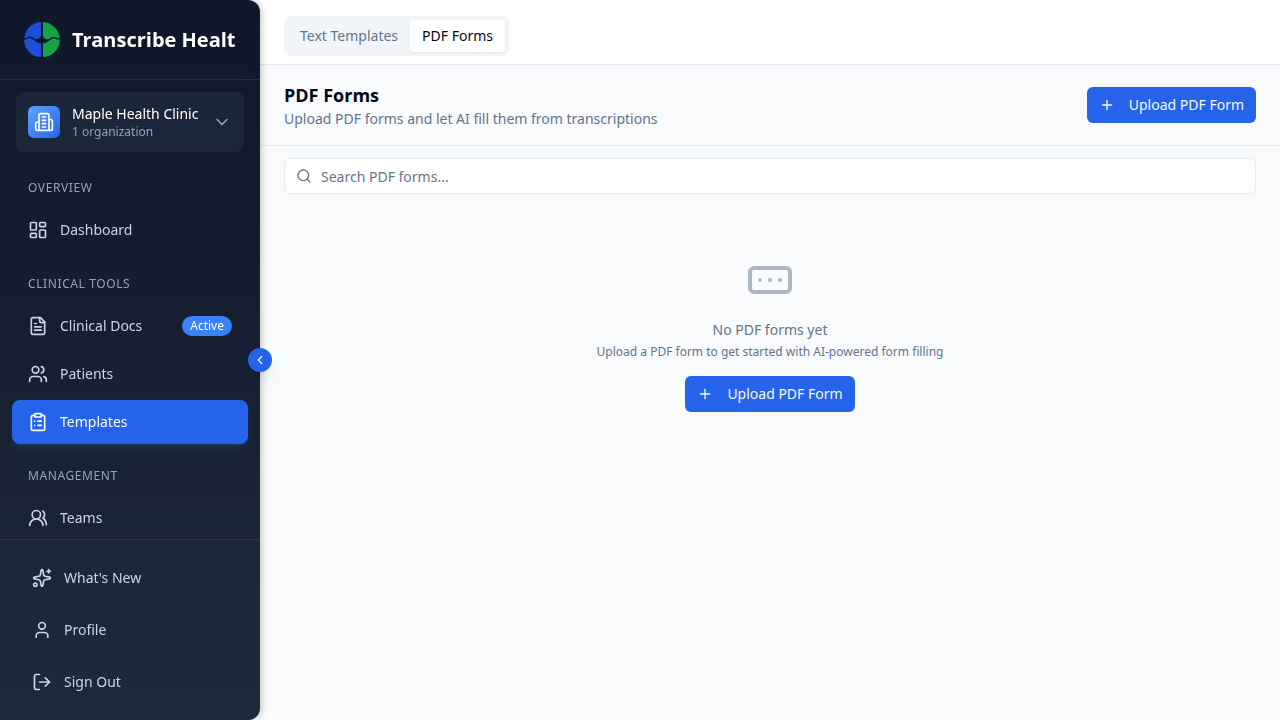
3. Upload your PDF
Select or drag a PDF file. The wizard shows the file name and size once uploaded.
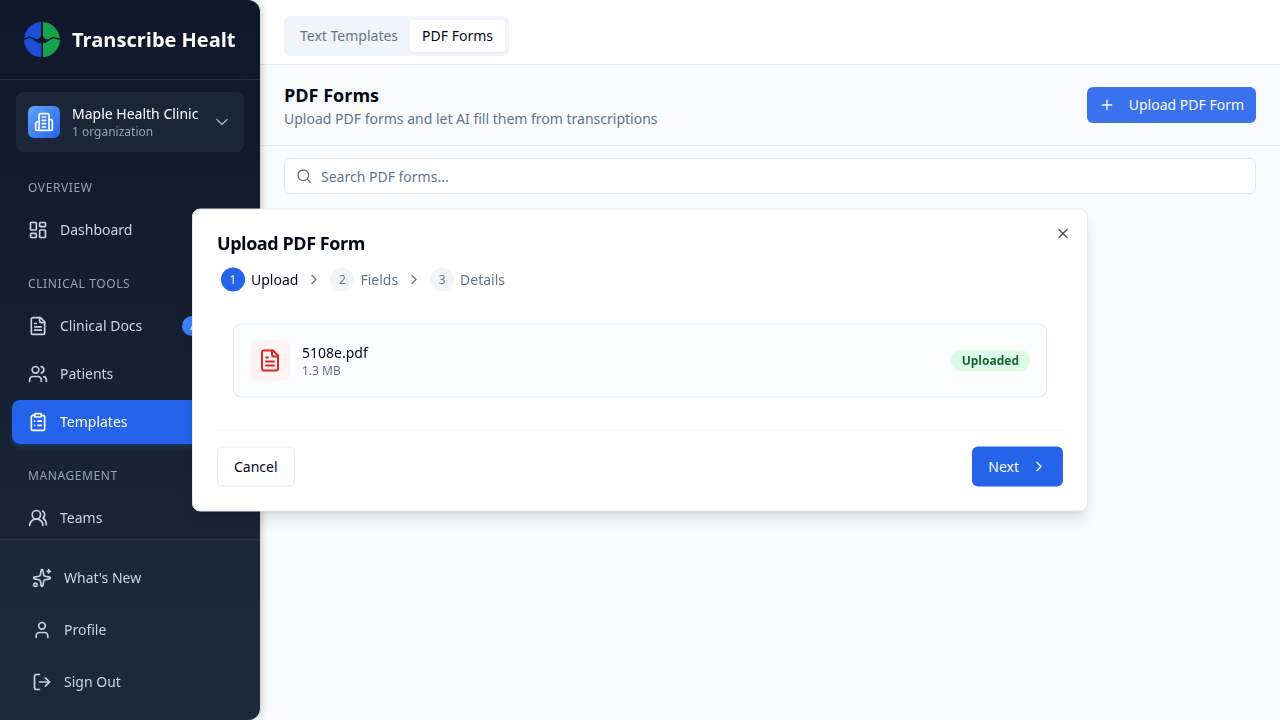
Click Next to proceed to field detection.
4. Review detected fields
AI automatically detects all fillable fields in your PDF. The left panel shows a preview of the form, and the right panel lists all detected fields with their names, types, and page numbers.
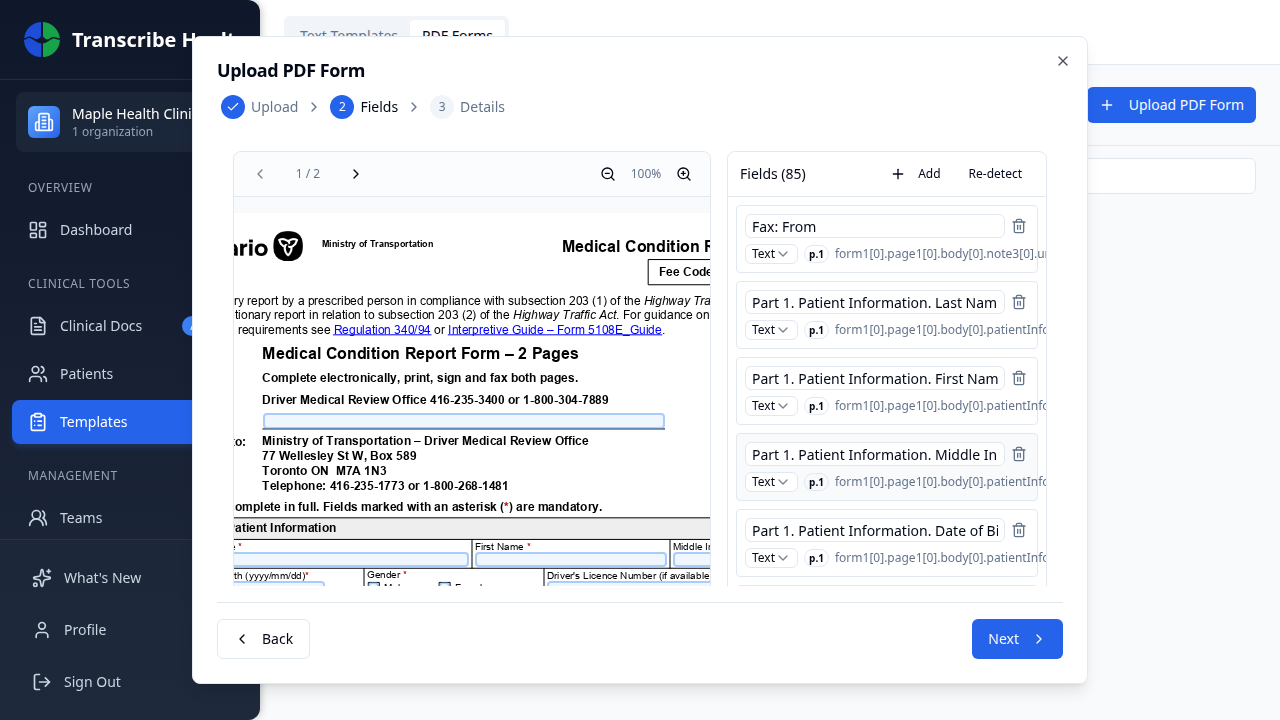
You can:
- Rename fields - Click a field name to edit it for clarity
- Change field types - Switch between Text, Checkbox, Date, etc.
- Add fields - Click + Add to manually add fields the AI missed
- Re-detect - Click Re-detect to run field detection again
- Remove fields - Click the trash icon to delete a field
Click Next to add template metadata (name, description, category), then Save to create the template.
Filling a form from a transcription
After recording a transcription session:
- Open the session and navigate to the document panel
- Click the Fill Form button
- Select the PDF form template you want to fill
- AI reads the transcription and fills in the form fields automatically
- Review the filled values - you can edit any field before downloading
- Click Download PDF to get the completed form
Supported form types
Any PDF with fillable form fields works, including:
- Medical reports - Ontario Form 5108E, Workers' Compensation forms
- Referral letters - Pre-formatted referral documents
- Insurance forms - Claim forms, prior authorization requests
- Government forms - Disability assessments, fitness-to-work certificates
Tips
- Name your fields clearly during the upload step - the AI uses field names to understand what data to extract from the transcription
- Add AI instructions in the template metadata to guide the AI on how to interpret clinical notes for specific fields
- Forms with clearly labeled fields get the best AI filling accuracy
- You can share PDF form templates with your organization so all members can use them
Related Articles
Start a Transcription Session
Learn how to create and run a real-time AI transcription session for clinical encounters.
FeaturesManage Document Templates
Create, edit, and organize document templates for generating clinical documents from transcriptions.
FeaturesUse Real-time Translation
Translate your live transcription into another language during a streaming session.
Can't find what you're looking for?
Our team is here to help. Reach out and we'll get back to you within 24 hours.
Contact Support