Manage Teams
Create teams, assign members, and organize your organization into functional groups.
Teams let you organize members within your organization into functional groups - by department, specialty, or project. Team members can be assigned different roles within each team.
Accessing teams
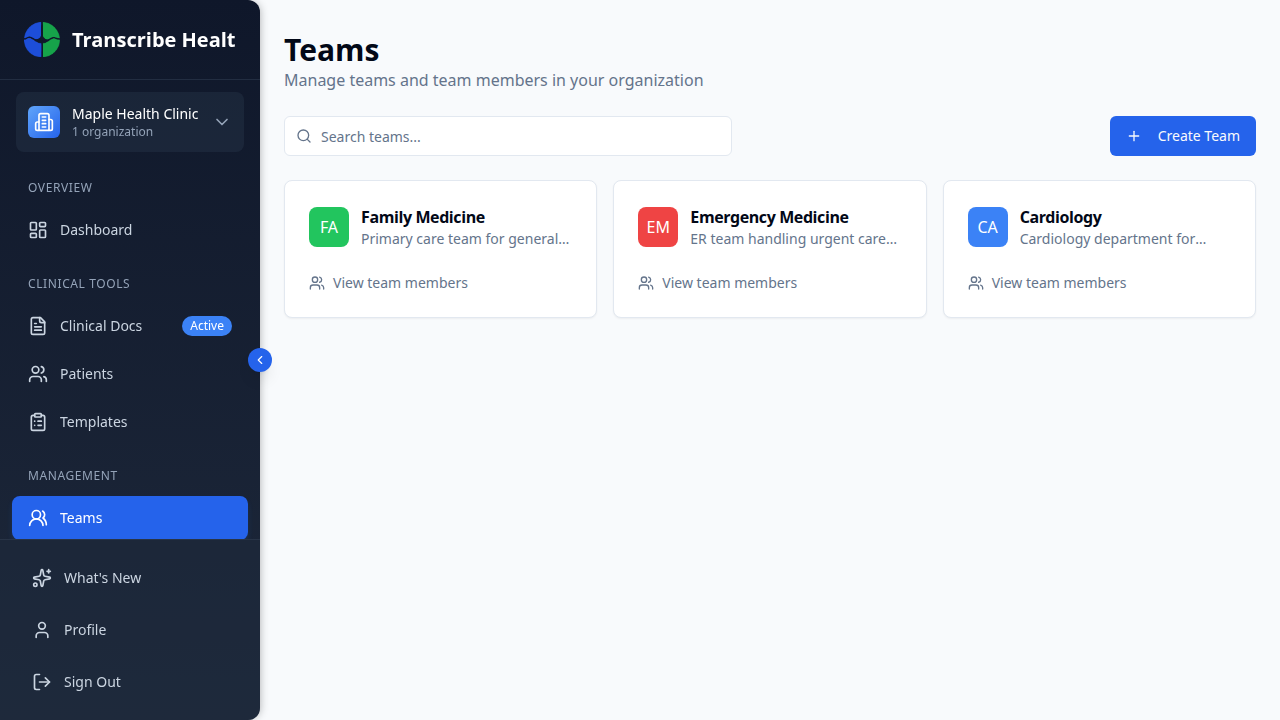
Click Teams in the sidebar navigation within your organization. You'll see your teams displayed as color-coded cards with a search bar and a Create Team button.
Creating a team
1. Click Create Team
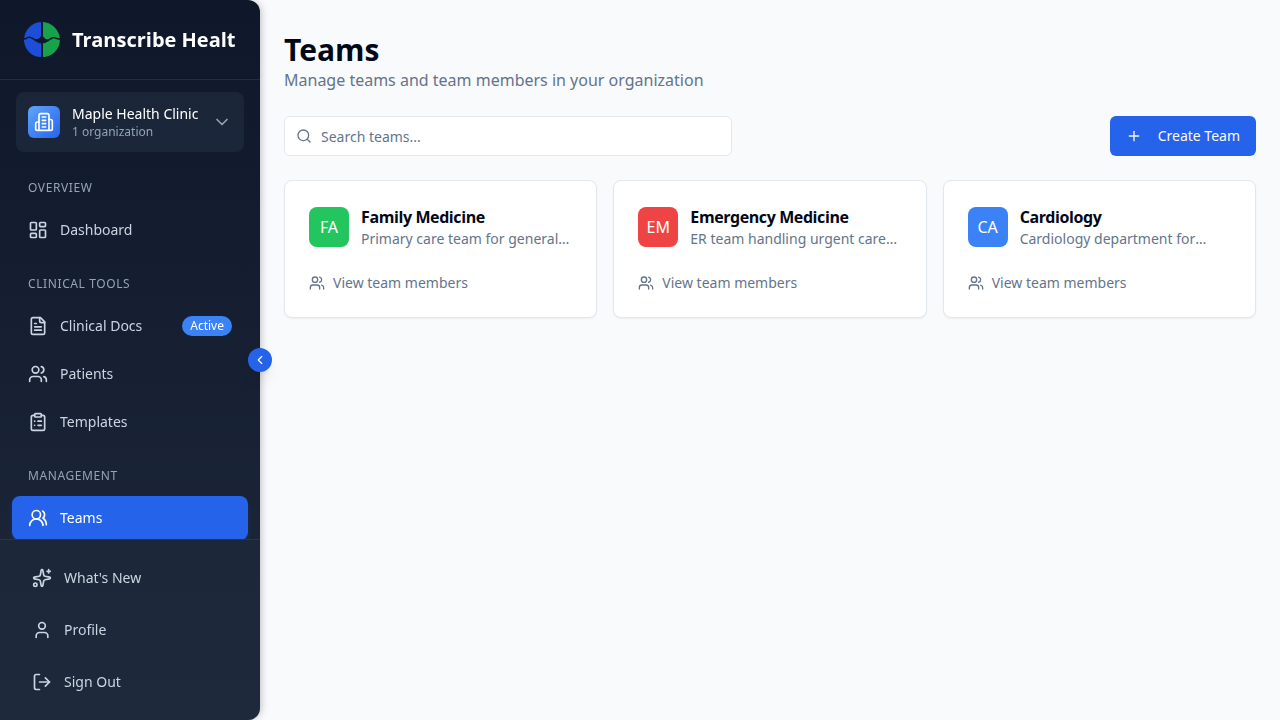
Click the + Create Team button at the top-right of the page.
2. Fill in team details
The Create Team dialog lets you configure:
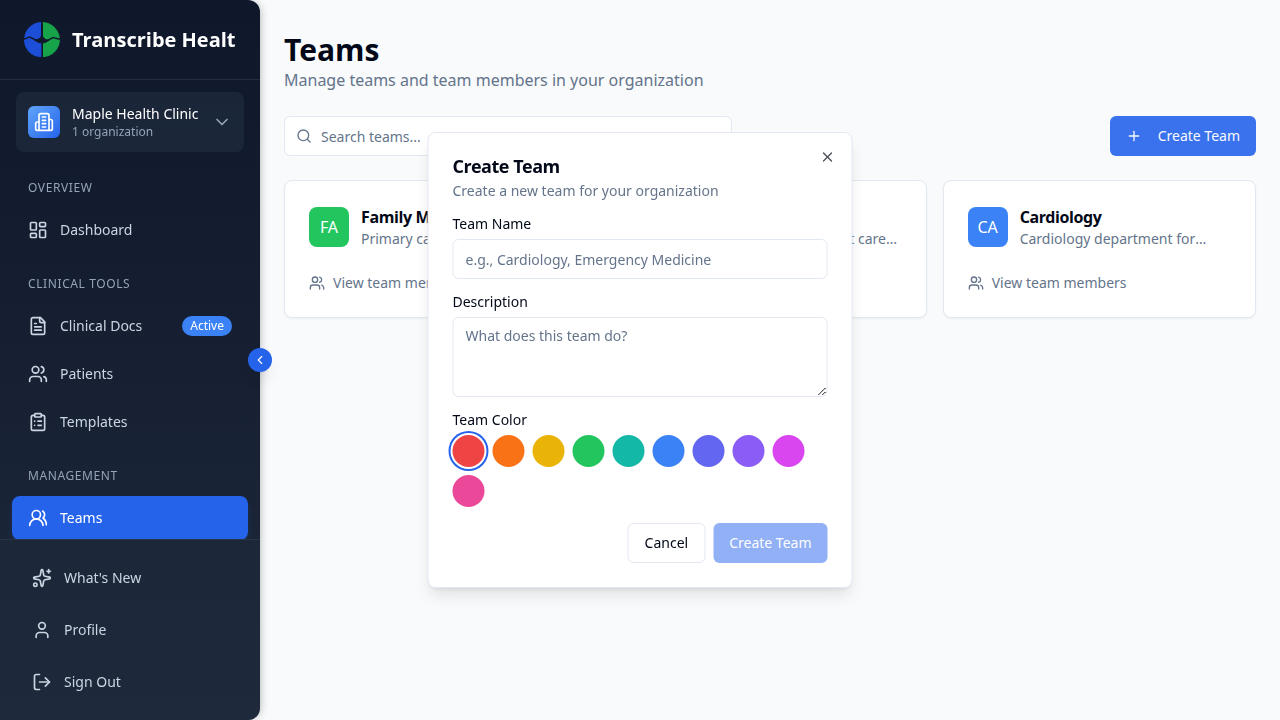
- Team Name (required) - e.g., "Cardiology", "Emergency Medicine"
- Description - What the team does
- Team Color - Choose from 10 preset colors for the team avatar
3. Save
Click Create Team to add the team. It will appear as a card on the Teams page.
Team detail page
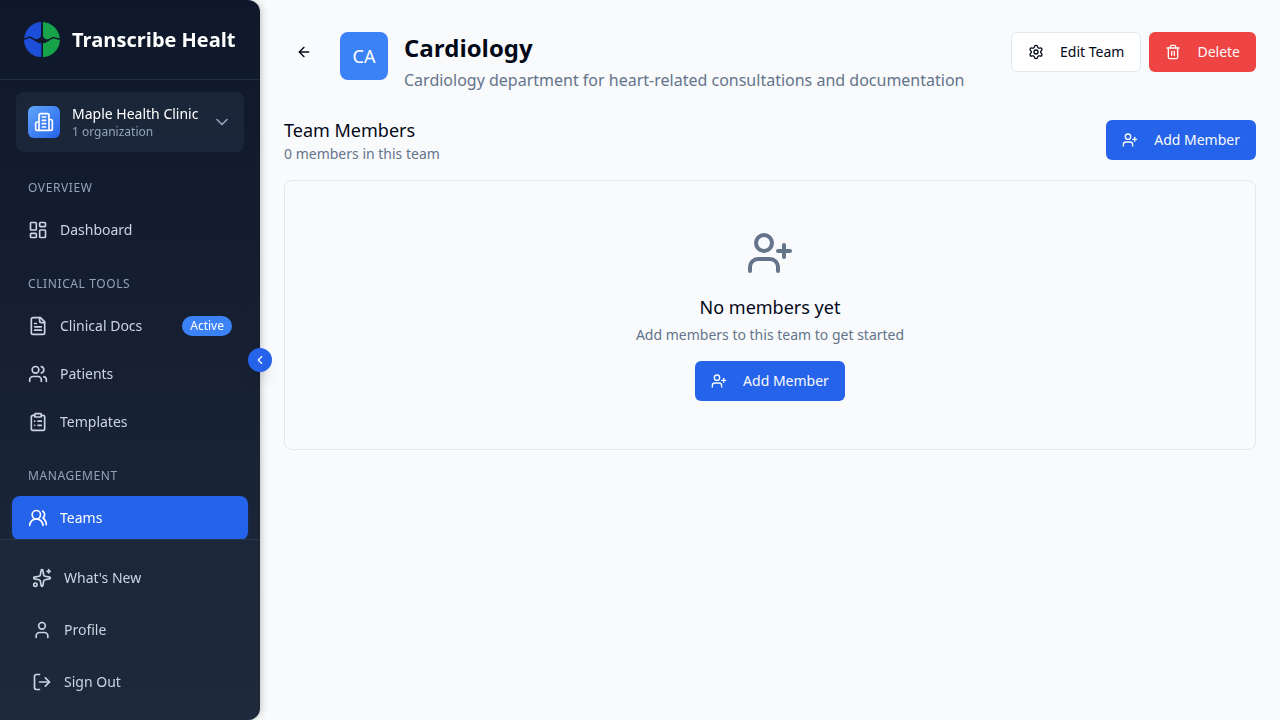
Click a team card to open its detail page, where you can manage members, edit the team, or delete it.
Managing team members
In the team detail page:
- Add Member - Click the Add Member button and select an organization member
- Change Role - Use the role dropdown to assign a role:
| Role | Permissions |
|---|---|
| Lead | Full team management |
| Member | Standard team member |
| Viewer | Read-only access |
- Remove Member - Click the three-dot menu and select Remove from Team
Editing a team
On the team detail page, click Edit Team to modify the name, description, or color.
Deleting a team
Click the Delete button on the team detail page. This removes the team but does not remove members from the organization.
Related Articles
Start a Transcription Session
Learn how to create and run a real-time AI transcription session for clinical encounters.
FeaturesManage Document Templates
Create, edit, and organize document templates for generating clinical documents from transcriptions.
FeaturesUse Real-time Translation
Translate your live transcription into another language during a streaming session.
Can't find what you're looking for?
Our team is here to help. Reach out and we'll get back to you within 24 hours.
Contact Support