Manage Organization Settings
Configure your organization's details, consent requirements, data retention, and more.
Organization settings let you configure how your Transcribe Health organization operates - from basic details to security policies and compliance features.
Prerequisites
- You must be an Owner or Admin to modify settings
Accessing settings
From your organization sidebar, click Organization to open the settings page. The settings are organized into tabs.
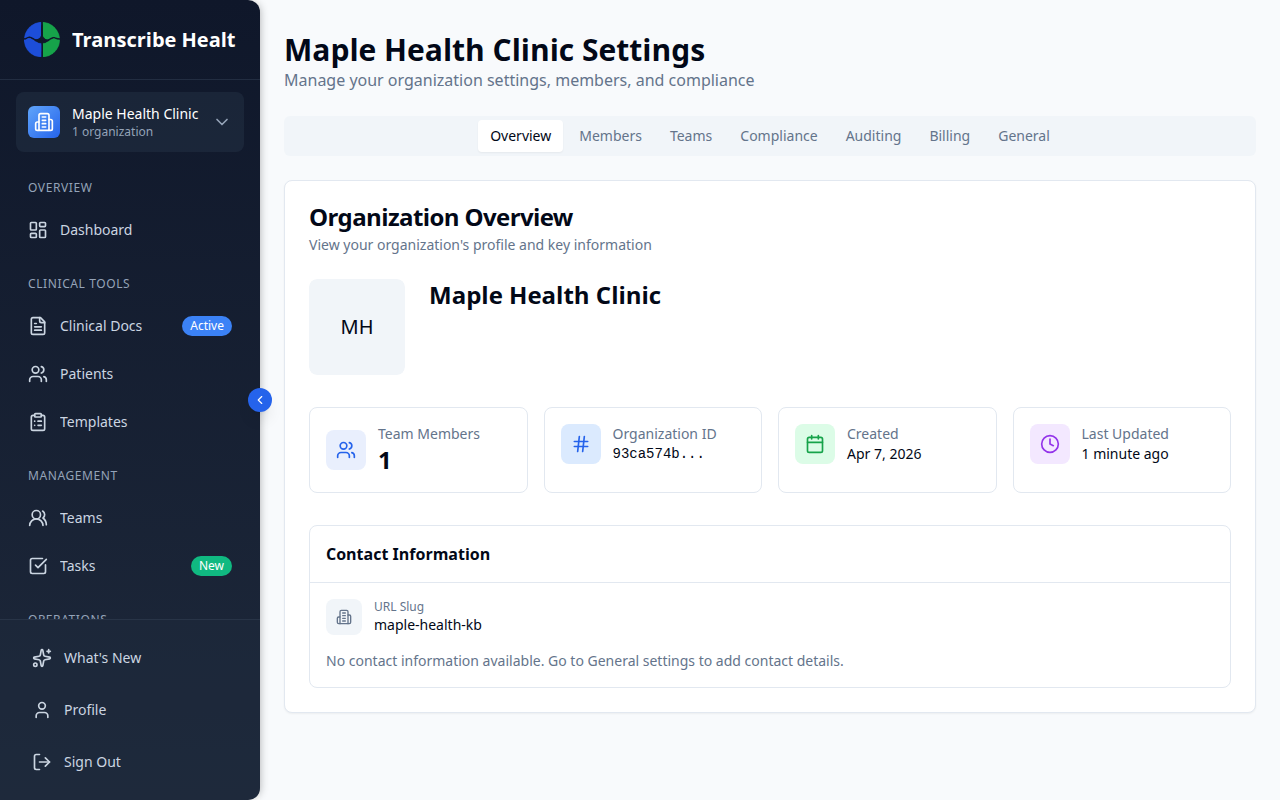
Overview tab
The overview tab shows your organization's key information at a glance: name, member count, creation date, and contact details.
General tab
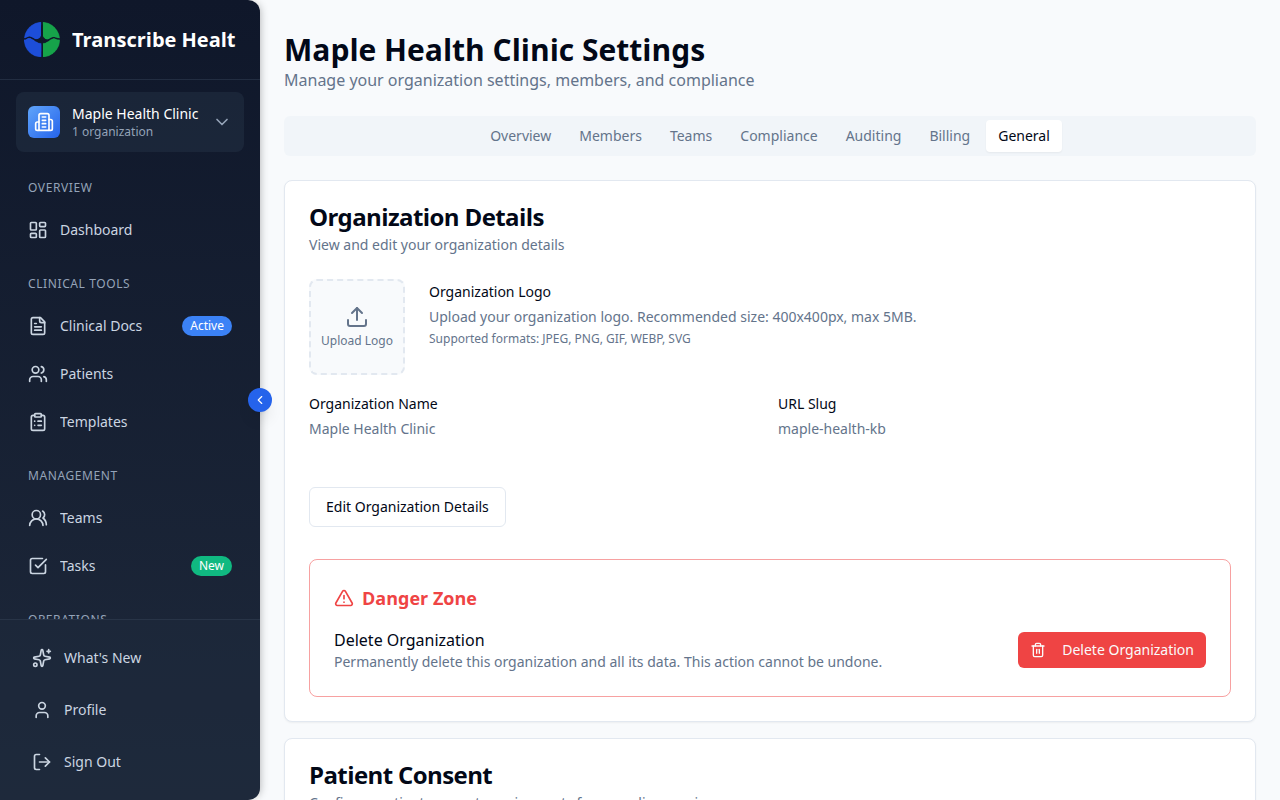
The General tab contains your core organization configuration.
Organization details
Edit your organization's name, description, website, email, and phone number.
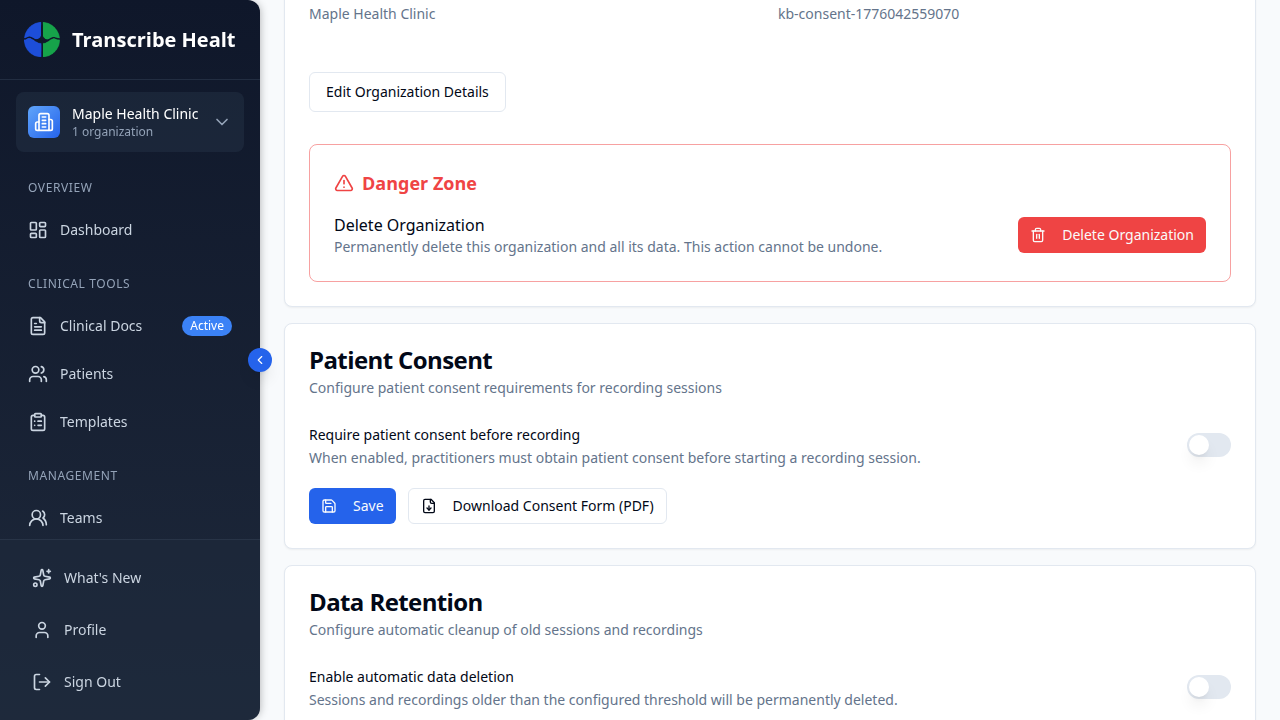
Patient consent and data retention
- Patient consent - Require practitioners to obtain patient consent before starting a recording session
- Data retention - Enable automatic deletion of sessions and recordings after a configurable time period
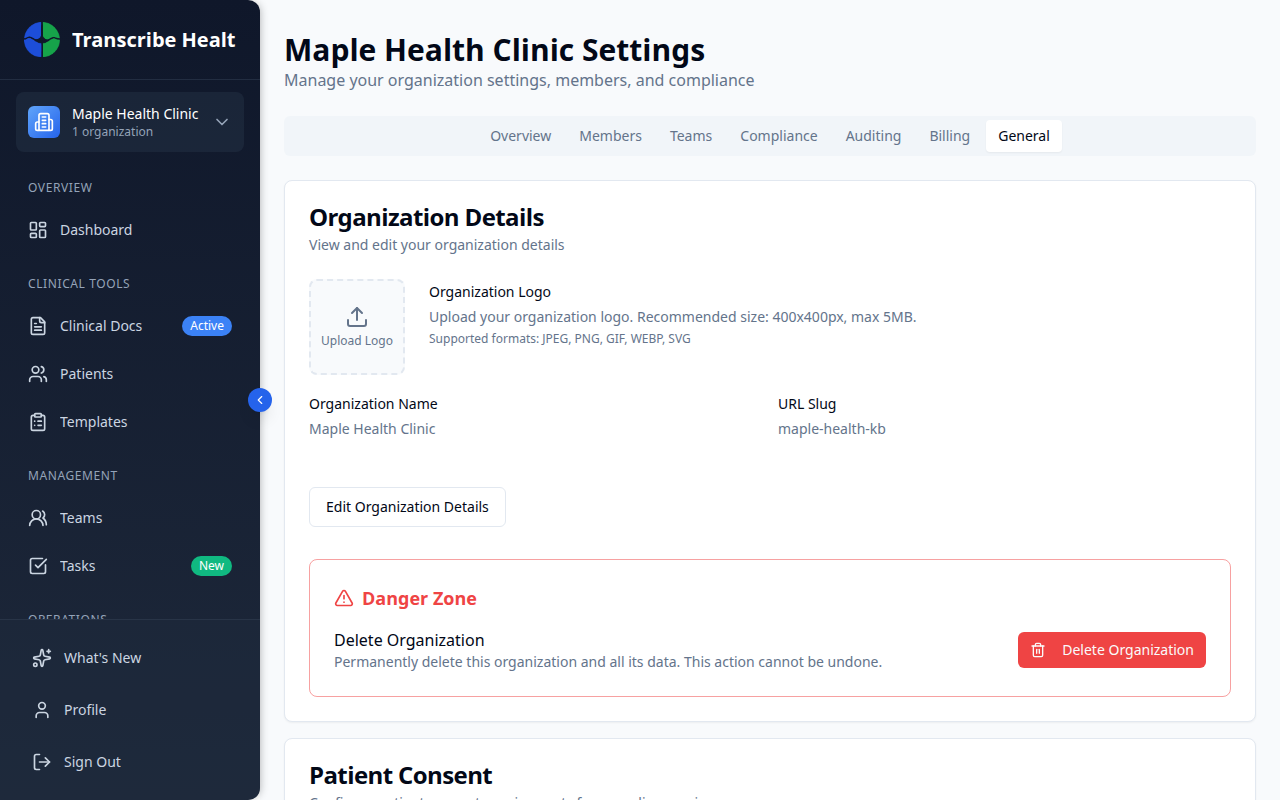
Danger zone
At the bottom of General settings, you can delete your organization. This action is permanent and requires typing the organization name to confirm.
Other settings tabs
| Tab | What it controls |
|---|---|
| Members | Invite members, manage roles, remove members |
| Teams | Create and manage teams within your organization |
| Compliance | View HIPAA compliance status and signed documents |
| Auditing | Browse audit logs for all organization activity |
| Billing | Manage subscription, view plans, update payment |
Related Articles
Enable Multi-Factor Authentication
Add an extra layer of security to your account by enabling MFA with an authenticator app.
Account & SettingsManage Team Members and Roles
Invite members, assign roles, manage permissions, and organize teams in your organization.
Account & SettingsCompliance Overview
View your organization's HIPAA compliance status, signed documents, and security features.
Can't find what you're looking for?
Our team is here to help. Reach out and we'll get back to you within 24 hours.
Contact Support