Manage Team Members and Roles
Invite members, assign roles, manage permissions, and organize teams in your organization.
Control who has access to your organization and what they can do. Transcribe Health uses a role-based system to manage permissions.
Prerequisites
- Owners and Admins can invite members and manage roles
- Members can view the member list but cannot modify it
Viewing members
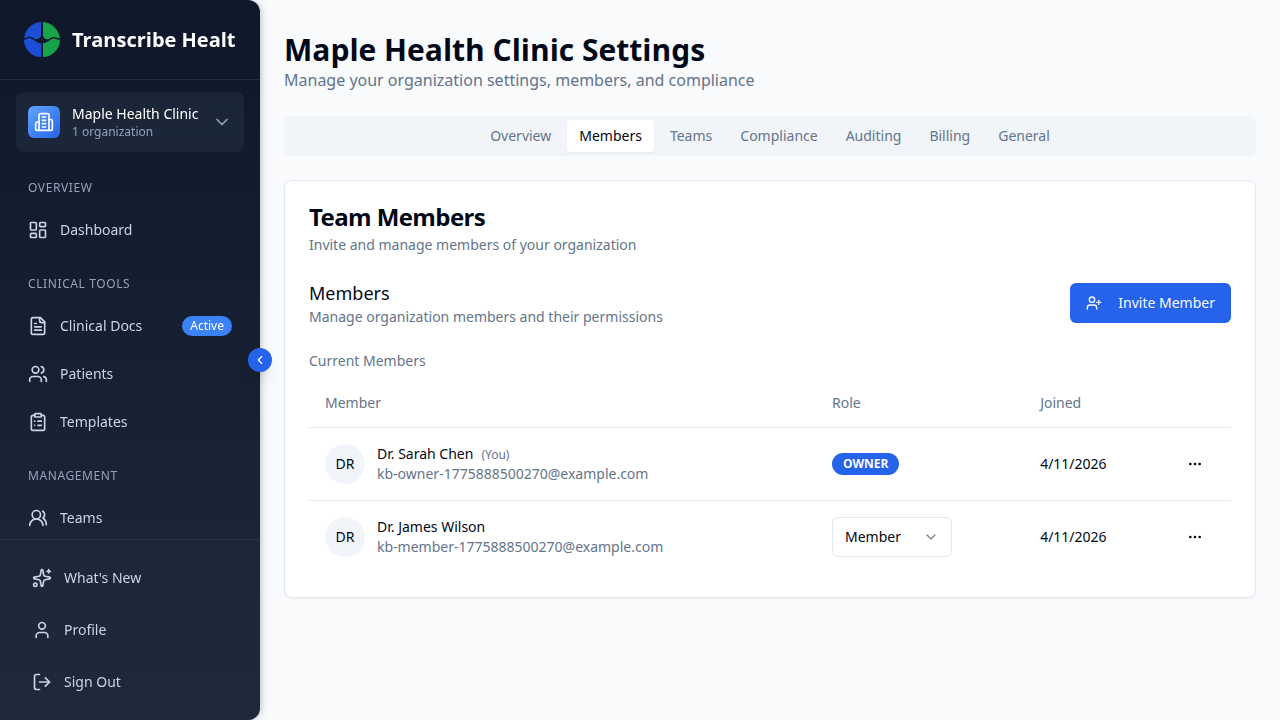
Navigate to Organization > Members tab to see all current members and pending invitations.
Inviting a new member
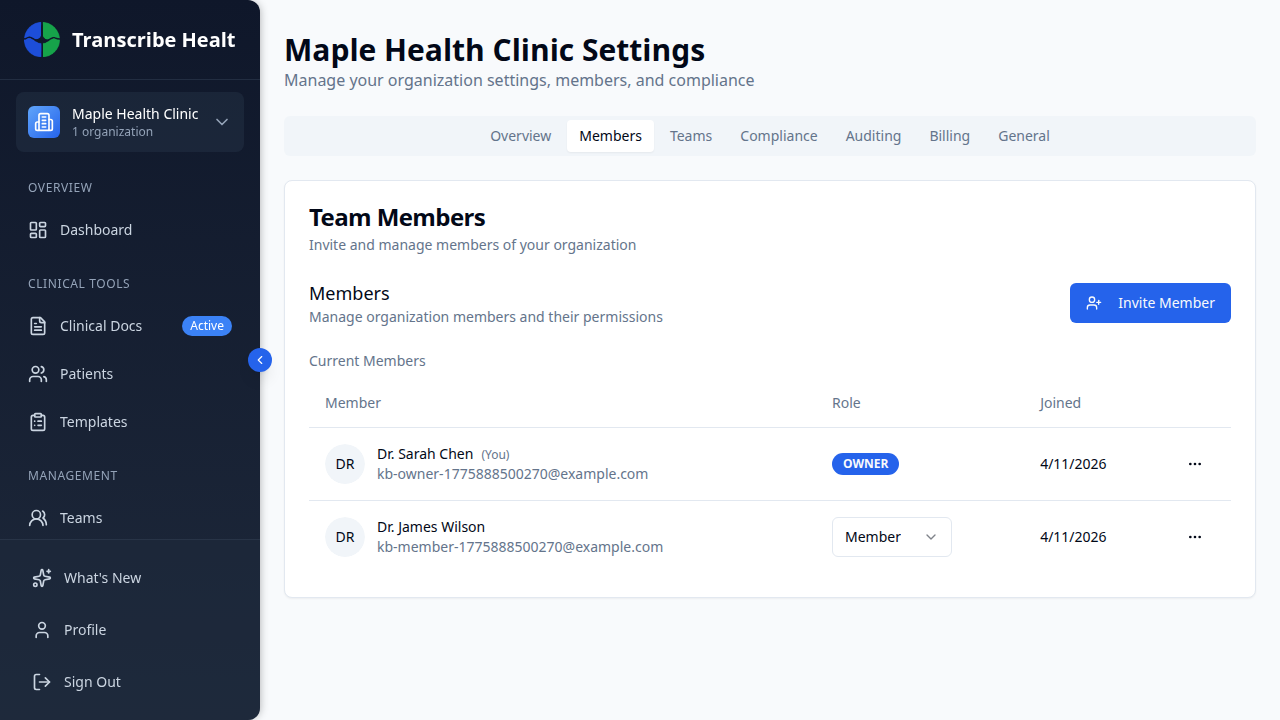
1. Click Invite Member
Click the Invite Member button at the top of the Members tab.
2. Fill in the invitation
Enter the person's email address and select a role:
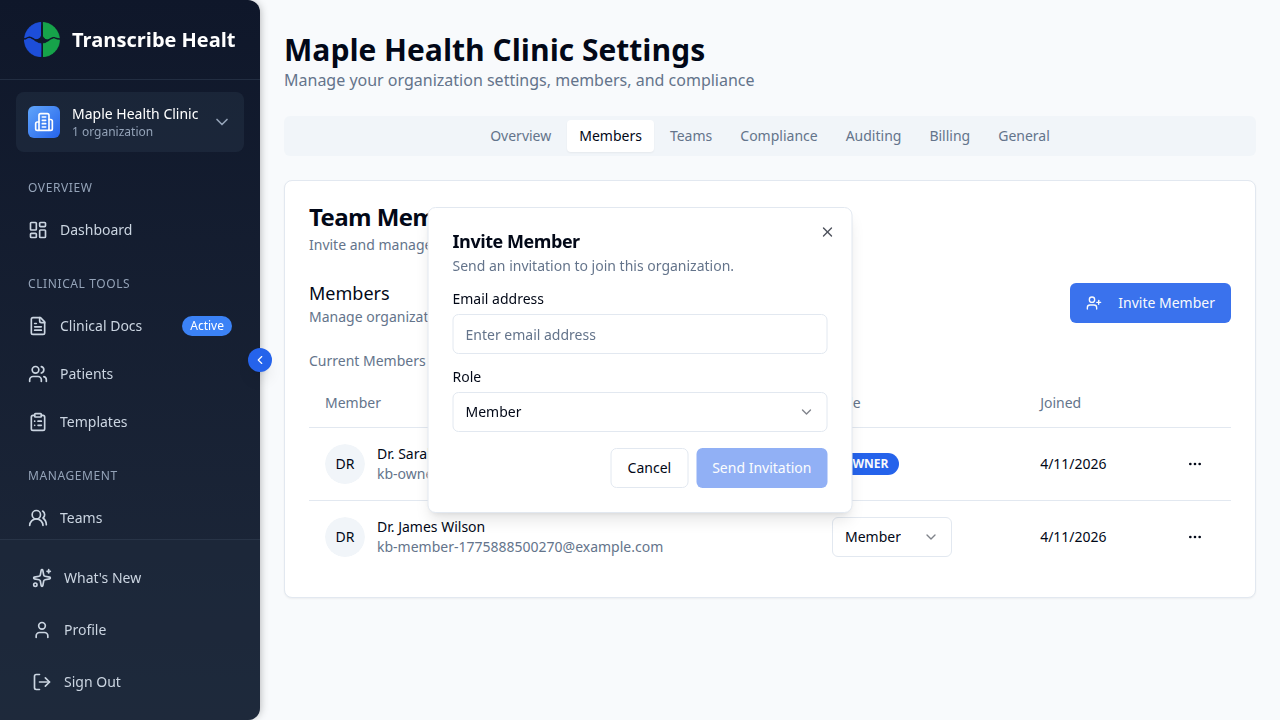
| Role | Permissions |
|---|---|
| Admin | Full access to settings, members, billing, and all clinical features |
| Member | Create sessions, use templates, manage their own documents |
| Guest | Limited read-only access |
3. Send the invitation
Click Send Invitation. The invitee receives an email with a link to join your organization.
Changing a member's role
On the Members tab, use the role dropdown next to a member's name to change their role. Only owners can promote members to Admin.
Removing a member
Click the three-dot menu next to a member and select Remove Member. This immediately revokes their access to the organization.
Managing teams
Use the Teams tab to create sub-groups within your organization. Teams help organize members by department, specialty, or project.
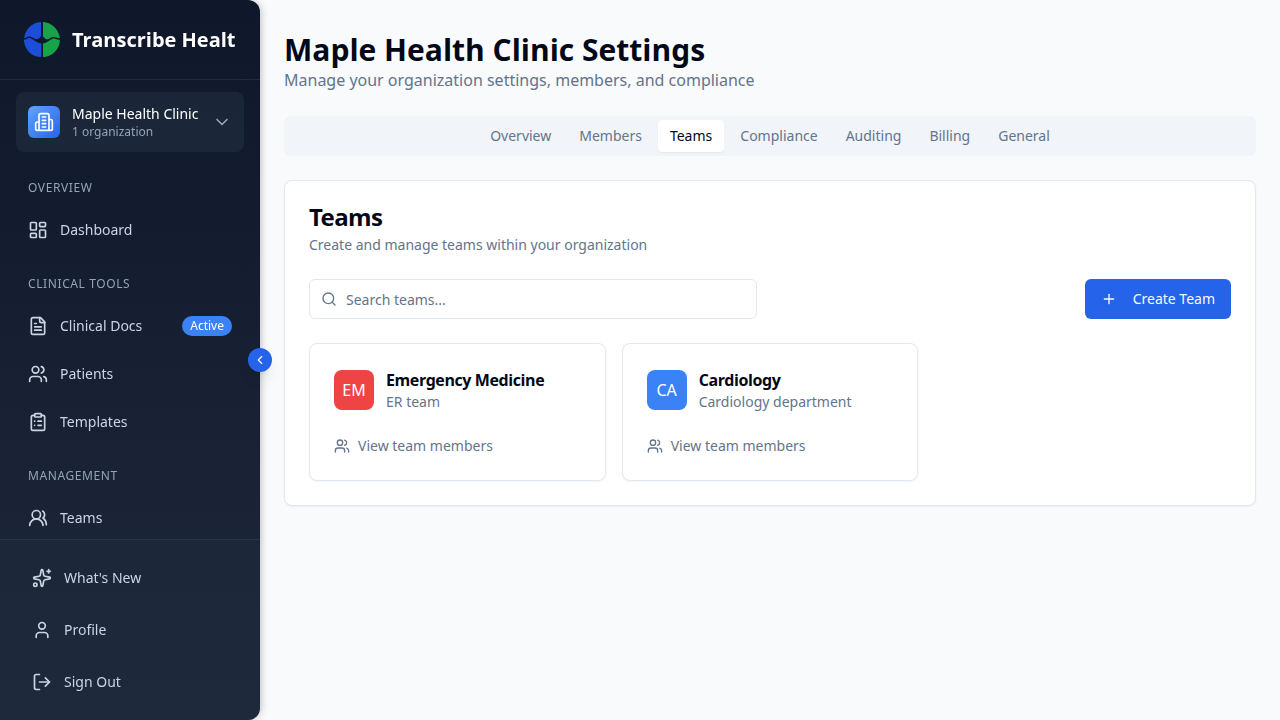
Click Create Team to add a new team with a name, description, and color.
Related Articles
Enable Multi-Factor Authentication
Add an extra layer of security to your account by enabling MFA with an authenticator app.
Account & SettingsManage Organization Settings
Configure your organization's details, consent requirements, data retention, and more.
Account & SettingsCompliance Overview
View your organization's HIPAA compliance status, signed documents, and security features.
Can't find what you're looking for?
Our team is here to help. Reach out and we'll get back to you within 24 hours.
Contact Support