Invite Team Members
Add colleagues to your organization and manage their roles and permissions.
Invite your colleagues to join your Transcribe Health organization so they can start using AI-powered documentation.
Prerequisites
- You must be an Owner or Admin of the organization
Steps
1. Open organization settings
Navigate to your organization and click Settings in the sidebar, then select the Members tab.
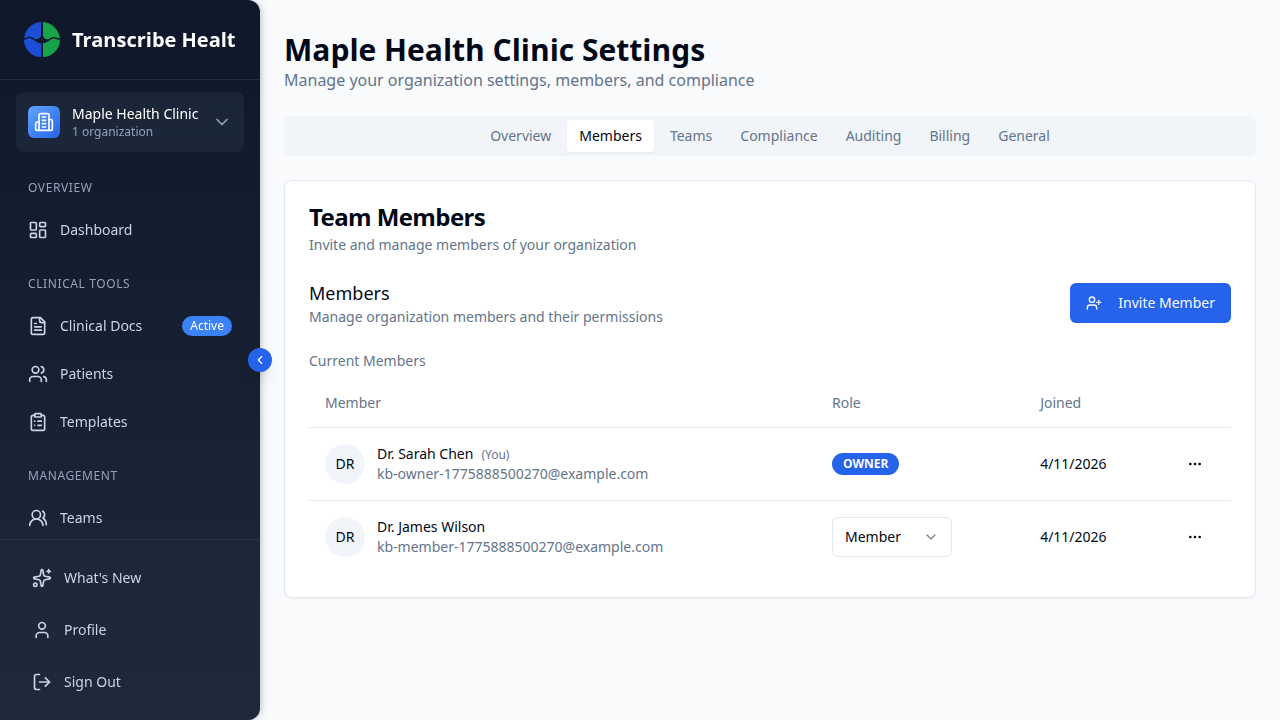
2. Click Invite Member
On the Members tab, click the Invite Member button to open the invitation form.
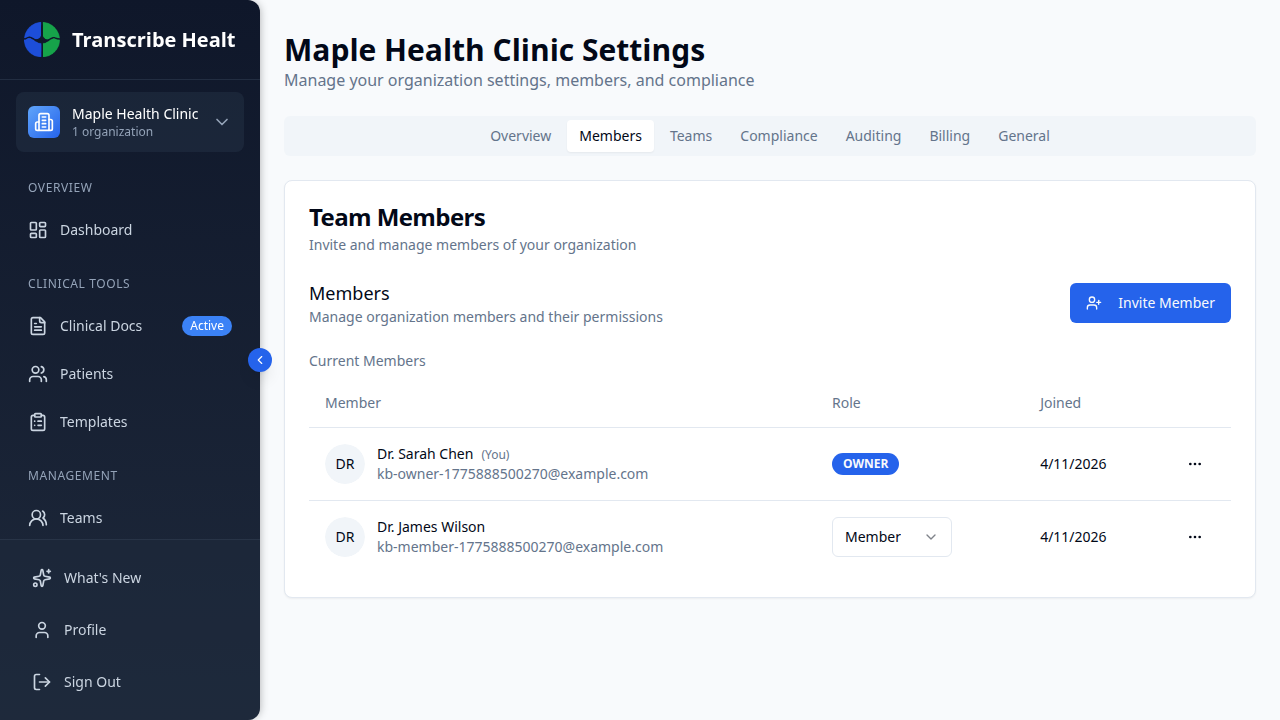
3. Enter the email and assign a role
Type the email address of the person you want to invite and select their role.
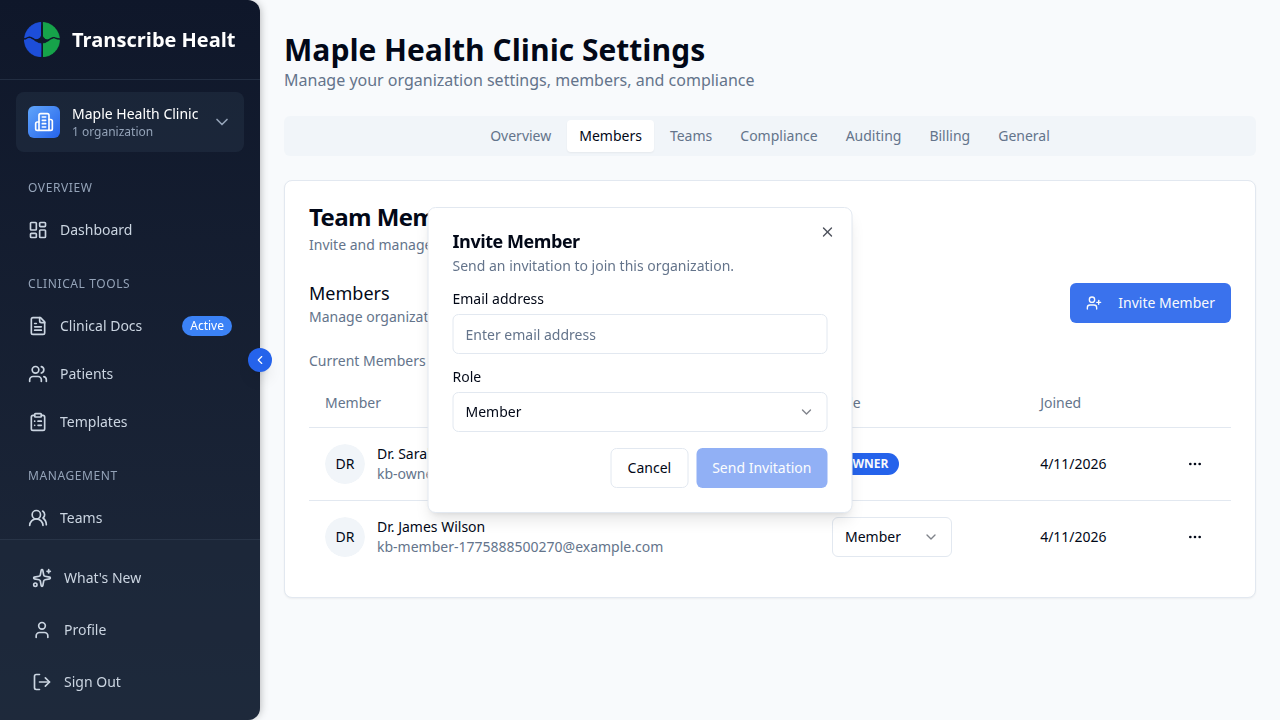
4. Assign a role
Select a role for the new member:
| Role | What they can do |
|---|---|
| Admin | Manage members, change settings, access all clinical features |
| Member | Create sessions, use templates, manage their own documents |
Only organization owners can assign the Admin role.
5. Send the invitation
Click Send Invite. The invitee will receive an email with instructions to join. If they already have a Transcribe Health account, they'll see the organization in their dashboard. If not, they'll be prompted to create an account first.
Managing existing members
From the Members page, you can:
- Change roles - Click the role dropdown next to a member's name
- Remove members - Click the remove button to revoke their access
Pending invitations
Invitations that haven't been accepted yet appear in the pending section. You can resend or cancel pending invitations.
Related Articles
Can't find what you're looking for?
Our team is here to help. Reach out and we'll get back to you within 24 hours.
Contact Support