Manage Tasks
Create, assign, and track tasks using list and Kanban board views.
Tasks help your team track work items - from follow-ups on patient sessions to administrative to-dos. Tasks support multiple views, priorities, statuses, and can be linked to patients and sessions.
Accessing tasks
Click Tasks in the sidebar navigation within your organization.
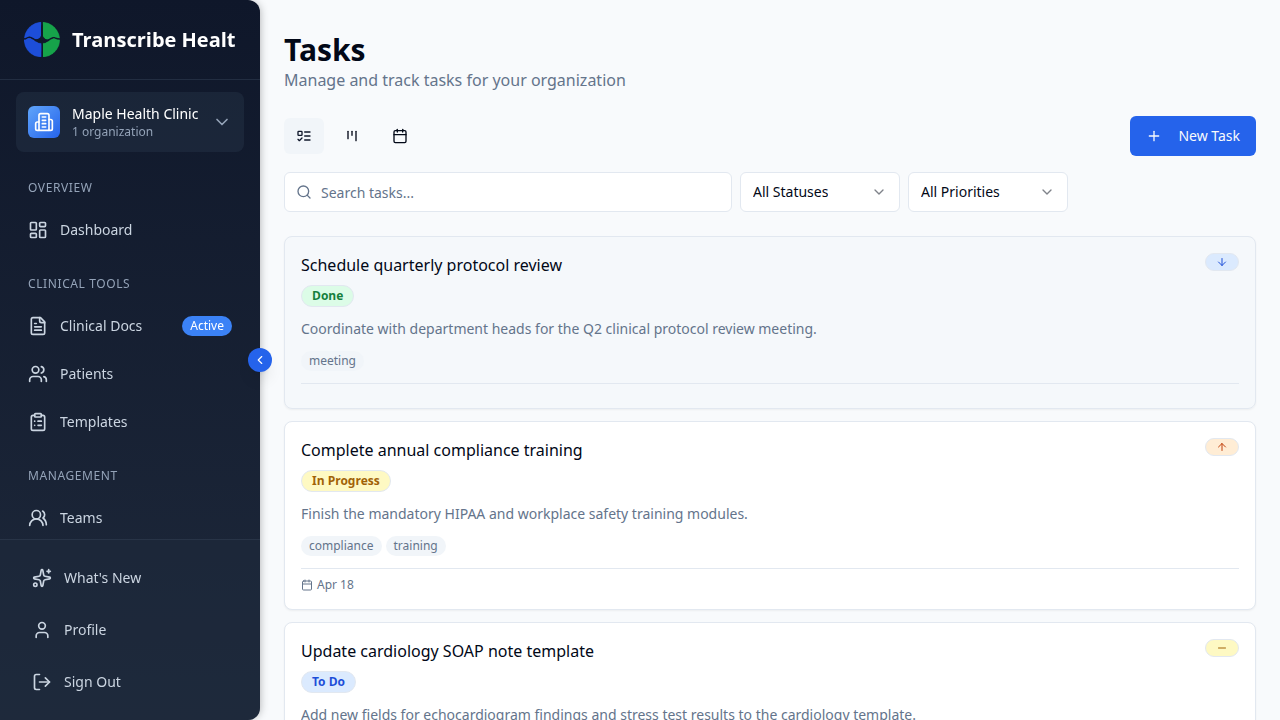
The Tasks page includes:
- View toggles - Switch between list, board (Kanban), and calendar views
- Search - Find tasks by title
- Filters - Filter by status and priority
- + New Task button - Create a new task
Creating a task
Click the + New Task button to open the task creation form.
Fill in the task details:
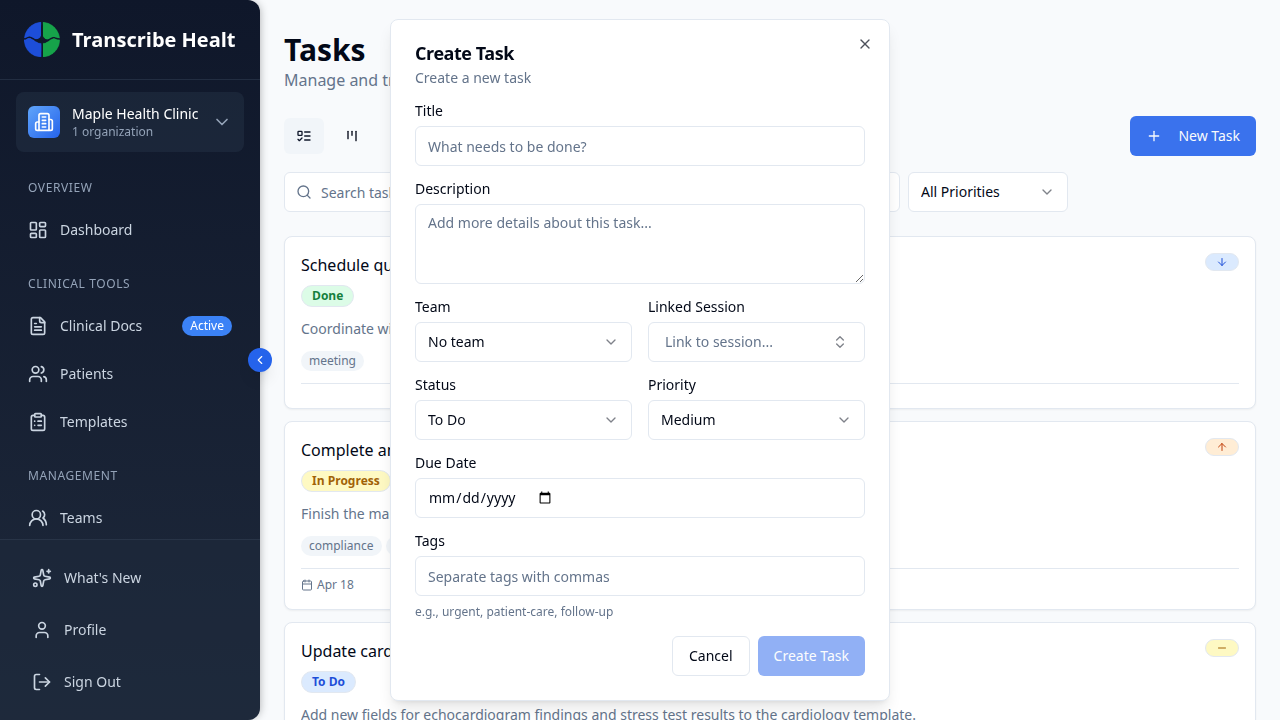
- Title (required)
- Description - Details about what needs to be done
- Status - Where the task is in the workflow
- Priority - How urgent the task is
- Due Date - When it should be completed
- Tags - Labels for categorization
- Team - Which team the task belongs to
- Assignee - Who is responsible
- Session / Patient - Link to a related transcription or patient record
Task statuses
| Status | Meaning |
|---|---|
| Backlog | Not yet planned |
| To Do | Ready to start |
| In Progress | Currently being worked on |
| In Review | Awaiting approval |
| Done | Completed |
| Canceled | Abandoned |
Task priorities
| Priority | Use when |
|---|---|
| Urgent | Immediate attention needed |
| High | Important, do soon |
| Medium | Normal priority |
| Low | Can be deferred |
| None | Not prioritized |
Views
List view
The default view shows tasks as a vertical list. Each task card shows the title, description preview, tags, due date, checklist progress, comment count, and assignee.
Board view (Kanban)
Switch to board view using the toggle icons at the top-left. Tasks are organized in columns by status. Drag and drop tasks between columns to update their status.
The five columns are: Backlog, To Do, In Progress, In Review, and Done.
Calendar view
Switch to calendar view to see tasks plotted by their due dates.
Task details
Click any task to open its detail view. The detail page shows the task title, description, and a sidebar with all metadata.
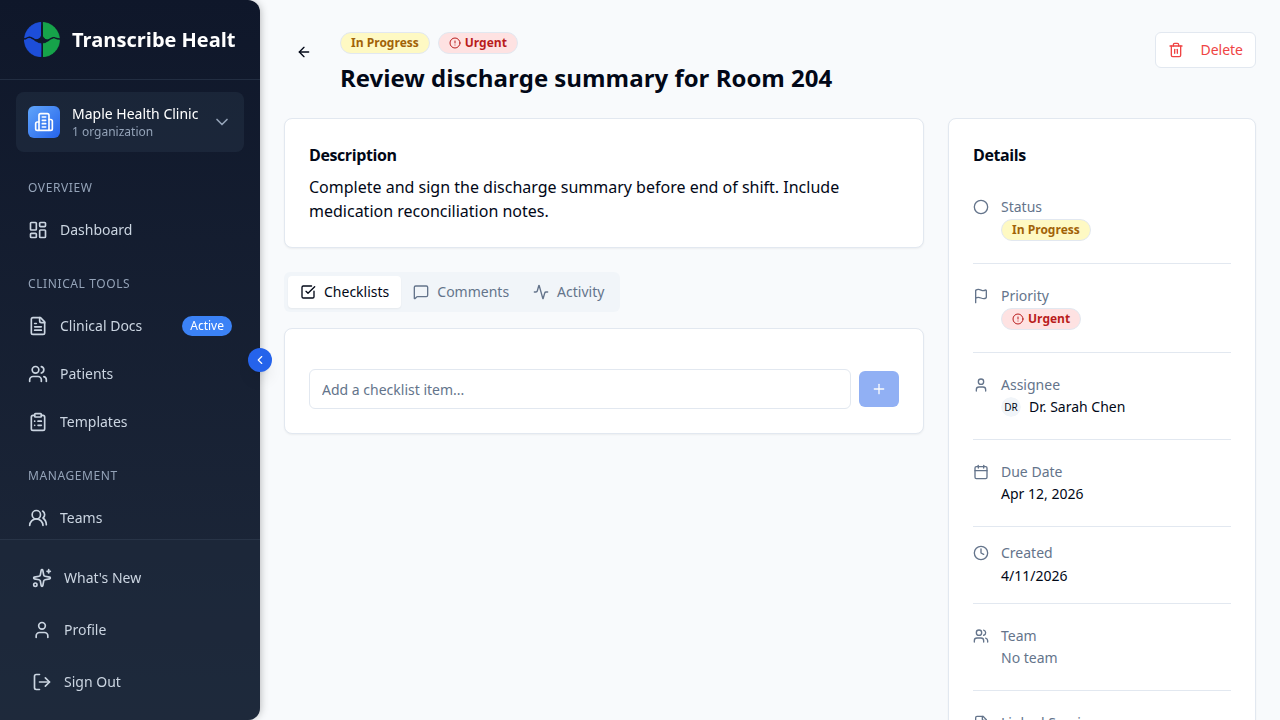
The detail view has tabs:
- Checklists - Create sub-task checklists within the task
- Comments - Discussion thread for the task
- Activity - Audit log of all changes made to the task
The Details sidebar on the right shows:
- Status and Priority (editable)
- Assignee - Who is responsible
- Due Date - When the task is due
- Team - Which team it belongs to
- Linked Session / Patient - Related clinical records
Tips
- Link tasks to transcription sessions to track follow-ups from clinical encounters
- Use the board view for sprint-style workflow management
- Filter by team to see only your team's tasks
- Overdue tasks show their due date in red for easy identification
Related Articles
Start a Transcription Session
Learn how to create and run a real-time AI transcription session for clinical encounters.
FeaturesManage Document Templates
Create, edit, and organize document templates for generating clinical documents from transcriptions.
FeaturesUse Real-time Translation
Translate your live transcription into another language during a streaming session.
Can't find what you're looking for?
Our team is here to help. Reach out and we'll get back to you within 24 hours.
Contact Support