Start a Transcription Session
Learn how to create and run a real-time AI transcription session for clinical encounters.
Transcription sessions capture your clinical encounters in real-time using AI. The transcript is automatically generated as you speak, and you can edit it afterward using the AI-powered editor.
Prerequisites
- You must be a member of an organization
- Your browser must have microphone access enabled
Steps
1. Open Clinical Docs
From your organization dashboard, click Clinical Docs in the sidebar navigation to view your sessions.
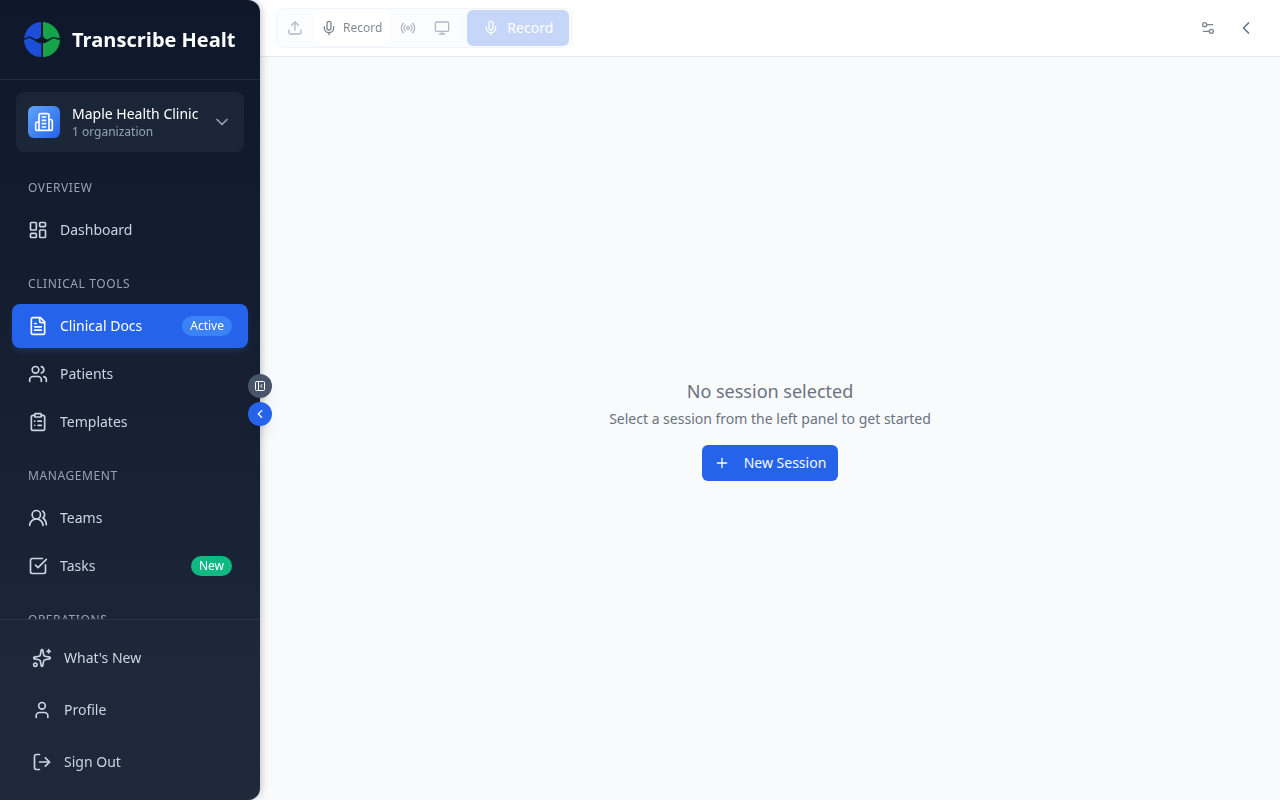
2. Create a new session
Click the New Session button. You can optionally:
- Name the session - e.g., "Patient Visit - April 6"
- Select a folder - Organize sessions into folders for easy retrieval
- Link a patient - Associate the session with a patient record
3. Start recording
Click the Start Recording button. Your browser will request microphone permission if this is your first session. Grant access to proceed.
The AI transcription begins immediately. You'll see text appearing in real-time as speech is detected.
4. During the session
While recording, you can:
- Pause and resume - Use the pause button if you need to step away
- View the live transcript - Text updates in real-time as you speak
5. End the session
Click Stop Recording when your encounter is complete. The session will be marked as completed and the full transcript will be available for review.
Working with your transcript
After the session ends:
- Edit the transcript using the built-in editor
- Generate clinical documents from templates (SOAP notes, referral letters, etc.)
- Use AI commands to summarize, restructure, or extract key information
- Share the session with colleagues in your organization
Tips
- Speak clearly and at a natural pace for the best transcription accuracy
- Position your microphone between you and the patient for optimal audio capture
- Use a quiet environment when possible to reduce background noise
Related Articles
Manage Document Templates
Create, edit, and organize document templates for generating clinical documents from transcriptions.
FeaturesUse Real-time Translation
Translate your live transcription into another language during a streaming session.
FeaturesManage Patients
Add, search, and manage patient records in your organization.
Can't find what you're looking for?
Our team is here to help. Reach out and we'll get back to you within 24 hours.
Contact Support