ICD-10 Billing Code Suggestions
Get AI-suggested ICD-10 billing codes on your clinical documents. Review, accept, edit, or reject codes before adding them to your notes.
Transcribe Health can analyze your clinical documents and suggest the most relevant ICD-10 diagnostic codes for billing. The AI reads your clinical note, identifies diagnoses and conditions, and recommends 2-3 ICD-10 codes with confidence levels and reasoning. Every suggested code is validated against the official CMS code set before it reaches you. Hallucinated or invalid codes are automatically filtered out, and descriptions come directly from CMS. You review each suggestion and decide whether to accept, edit, or reject it.
This feature supports ICD-10-CM (US) and HCPCS Level II (supplies, DME, and outpatient procedures), with additional coding systems coming soon. Your organization administrator can configure which systems are enabled under Organization Settings > General > Medical Coding.
Prerequisites
- A Professional plan or higher (ICD-10 suggestions are an AI feature)
- A session with a clinical document that has content (AI needs clinical text to analyze)
- The document must not be signed or finalized
Generating ICD-10 code suggestions
1. Open a session with a clinical document
Navigate to Clinical Docs in the sidebar and select a session that has a generated or written clinical note. The document should contain clinical content such as diagnoses, symptoms, medications, or exam findings.
2. Find the Suggest ICD-10 Codes button
Scroll to the bottom of the document editor. Below the document content, you'll see a Suggest ICD-10 Codes button with a sparkle icon.
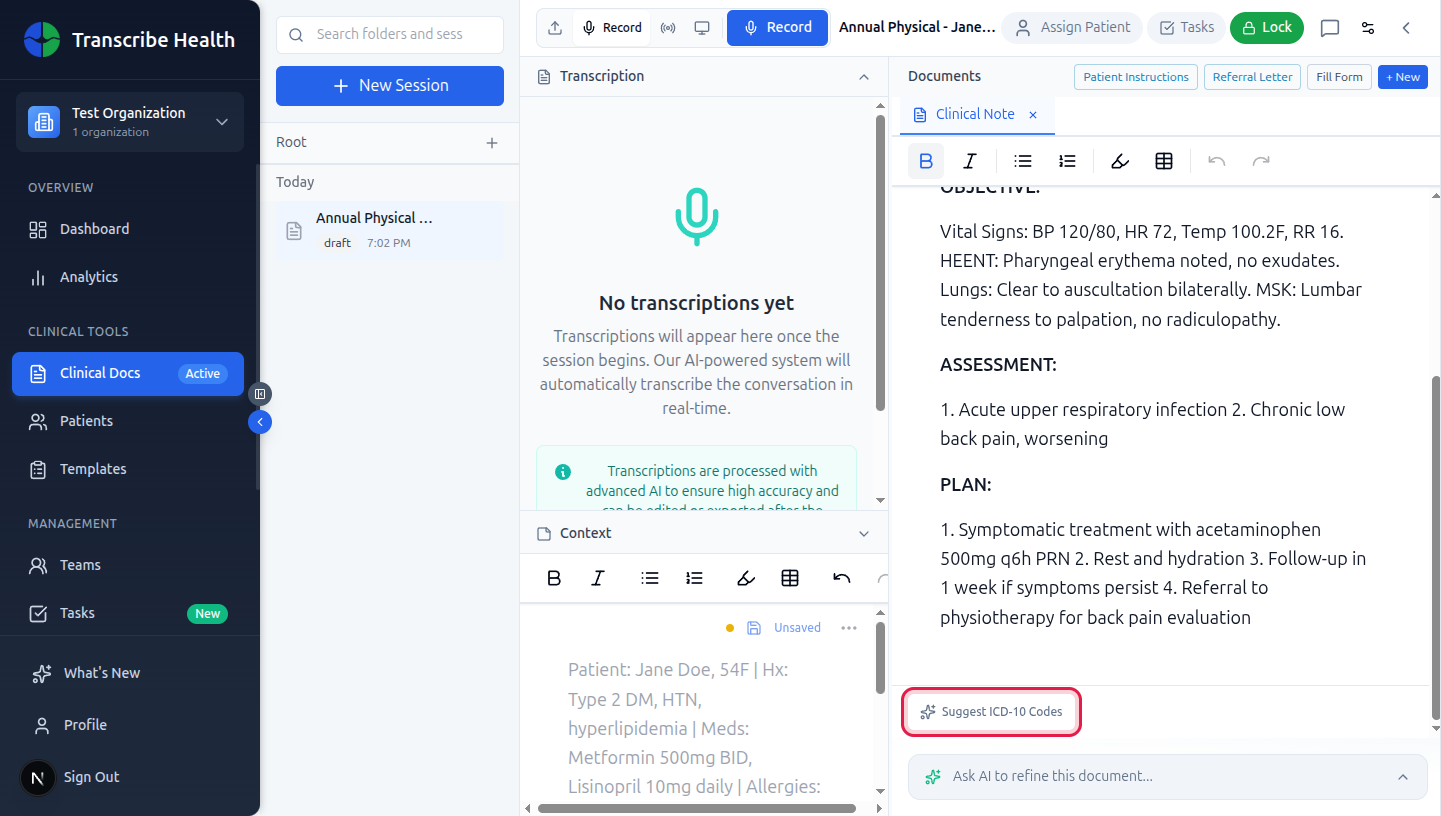
3. Click Suggest ICD-10 Codes
Click the button to start the analysis. You'll briefly see a loading indicator that says "Analyzing clinical note for billing codes..." while the AI processes your document.
4. Review the suggested codes
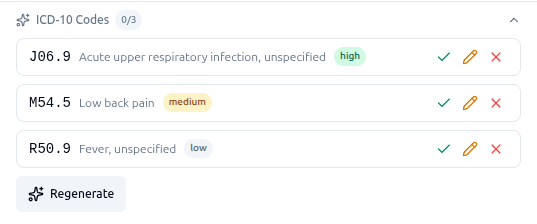
After a few seconds, the AI returns 2-3 ICD-10 code suggestions. Each suggestion appears as a chip showing the code, description, and a color-coded confidence badge.
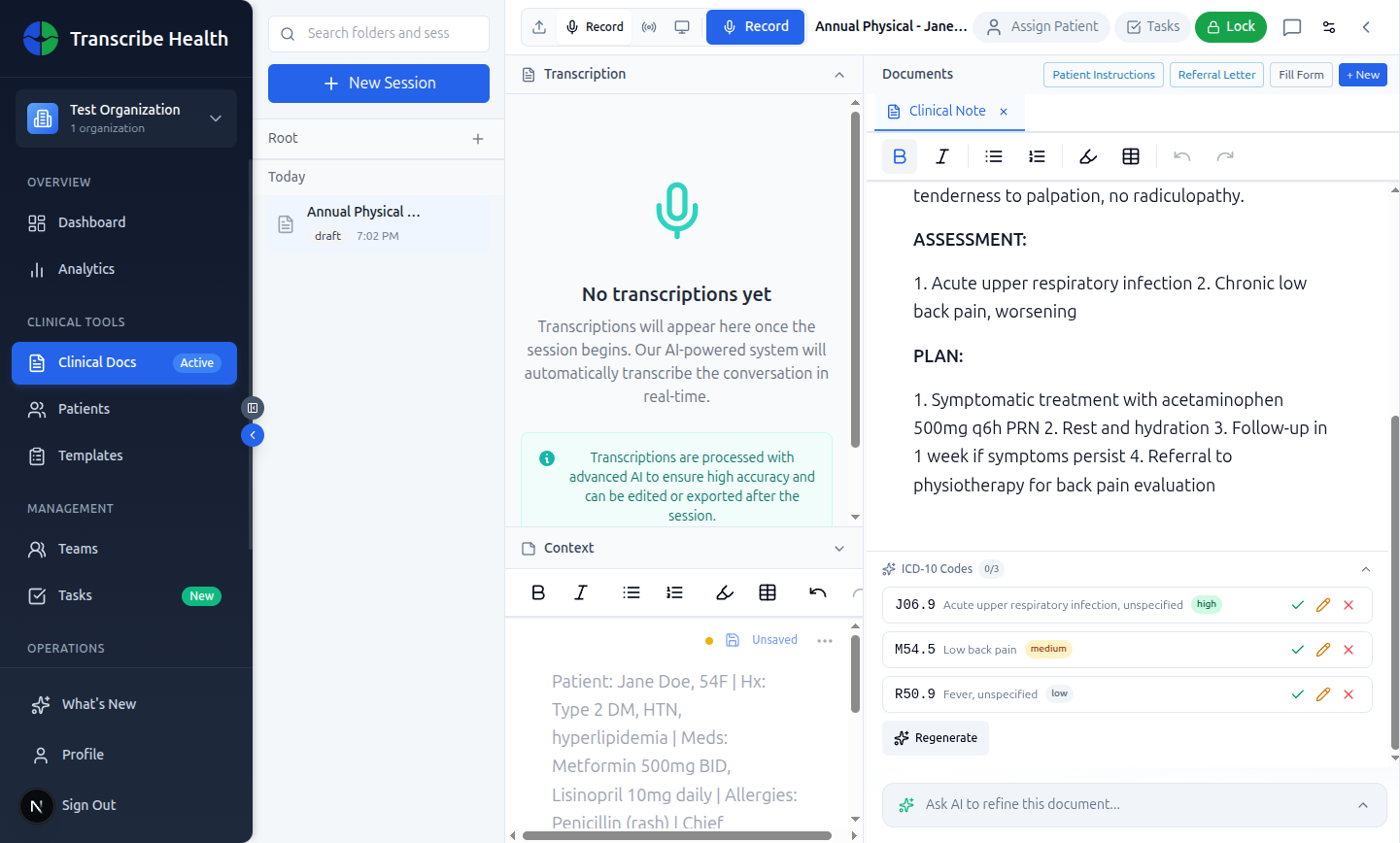
Each chip displays:
- Code: the ICD-10 code in monospace font (e.g.,
J06.9,M54.5) - Description: the official CMS description (not AI-generated)
- Verified badge: a blue checkmark icon indicates the code was validated against the official CMS ICD-10-CM code set. Only verified codes are shown.
- Confidence badge: color-coded confidence level:
- High (green): the code is clearly supported by the documentation
- Medium (amber): the code is reasonably inferred from the note
- Low (gray): the code is possible but not strongly supported
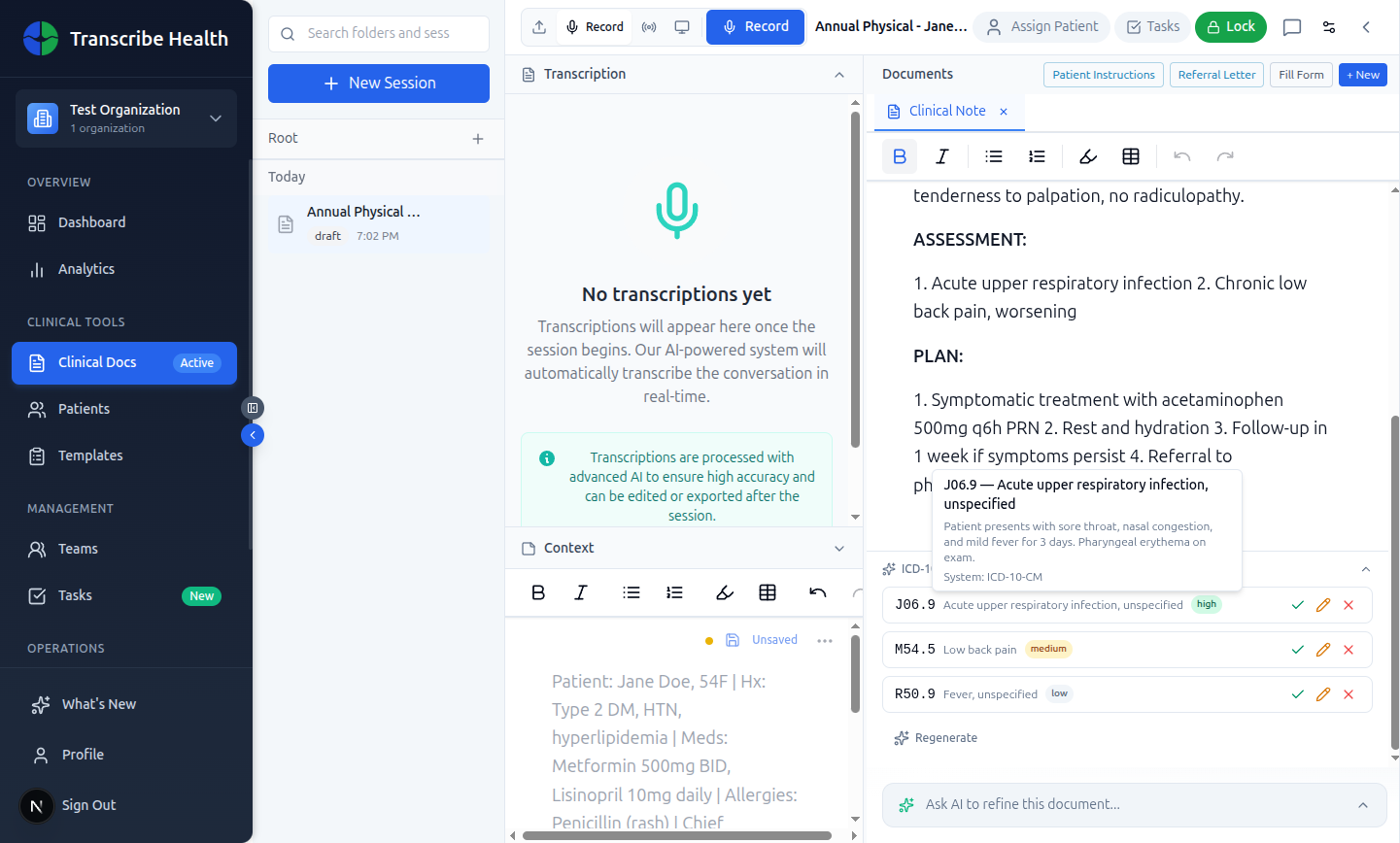
5. View detailed reasoning
Hover over any suggestion chip to see a tooltip with the full code description, the AI's reasoning for suggesting it, the code system, and whether it was verified against CMS.
Reviewing suggestions
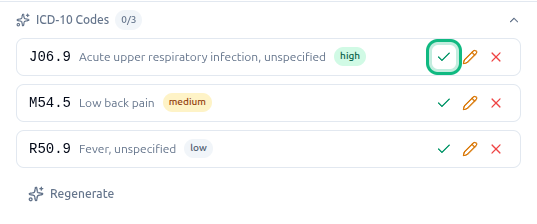
Each pending suggestion has three action buttons on the right side of the chip:
Accept a code
Click the checkmark (green) button to accept a suggestion. The chip border turns green to indicate it's been accepted. Accepted codes are stored as metadata on the document for downstream EHR integration.
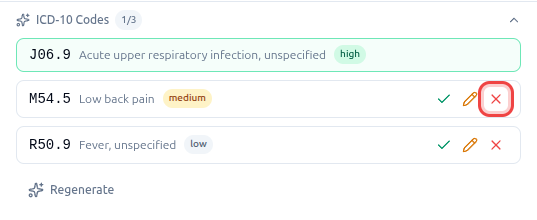
Reject a code
Click the X (red) button to reject a suggestion. The chip becomes dimmed with a strikethrough style, indicating it was reviewed but not applicable.
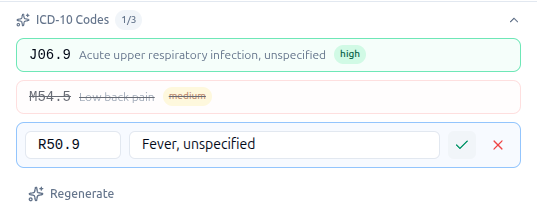
Edit a code
Click the pencil (amber) button to modify a suggestion. An inline edit form appears with two fields:
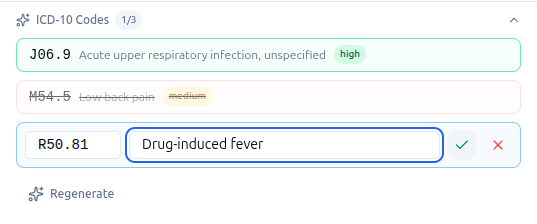
- Code: edit the ICD-10 code (e.g., change
R50.9toR50.81for a more specific fever code) - Description: edit the description to match the corrected code
Click the checkmark to save your edit, or the X to cancel. Edited suggestions appear with an amber border.
Tracking your progress
The ICD-10 Codes section header shows a counter (e.g., 2/3) indicating how many suggestions you've accepted or edited out of the total. This helps you track which codes still need review.
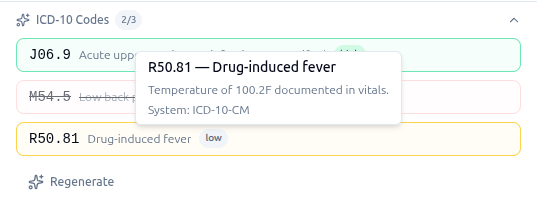
Regenerating suggestions
If you want fresh suggestions (for example, after editing the clinical note), click the Regenerate button below the suggestion chips. This re-analyzes the current document content and replaces all existing suggestions with new ones.
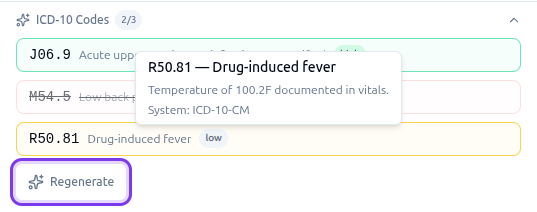
Collapsing the section
Click the ICD-10 Codes header to collapse or expand the suggestions section. This keeps the document editor clean when you're not actively reviewing codes.
How codes are used
Accepted and edited ICD-10 codes are saved as metadata on the document. When you push notes to an EHR system (such as OSCAR EMR), these codes can be included with the clinical note for billing purposes.
Configuring coding systems for your organization
Organization administrators can configure which coding systems are available under Organization Settings > General > Medical Coding.
- ICD-10-CM is enabled by default for all organizations
- HCPCS Level II is available for supplies, DME, and outpatient procedure codes
- Additional coding systems (ICD-10-CA, SNOMED CT, RxNorm, LOINC) are coming soon
- When multiple systems are enabled, set a default system that will be used when generating suggestions
- Changes apply to all members of the organization
Tips
- Generate after the note is complete. Wait until your clinical note is finalized before generating ICD-10 suggestions. The AI produces better results with complete clinical documentation.
- Review all suggestions. Even high-confidence suggestions should be clinician-reviewed. AI suggestions are advisory and do not replace professional medical coding judgment.
- Edit for specificity. If the AI suggests an unspecified code (e.g.,
J06.9, Acute upper respiratory infection, unspecified), consider editing it to a more specific code if the documentation supports it. - Look for the verified badge. The blue checkmark next to a code means it was validated against the official CMS ICD-10-CM code set. All suggested codes go through this validation; invalid codes are automatically removed before you see them.
- Regenerate after edits. If you make significant changes to the clinical note, regenerate the suggestions to get updated codes based on the revised content.
Related articles
Related Articles
Start a Transcription Session
Learn how to create and run a real-time AI transcription session for clinical encounters.
FeaturesManage Document Templates
Create, edit, and organize document templates for generating clinical documents from transcriptions.
FeaturesUse Real-time Translation
Translate your live transcription into another language during a streaming session.
Can't find what you're looking for?
Our team is here to help. Reach out and we'll get back to you within 24 hours.
Contact Support