Enable Multi-Factor Authentication
Add an extra layer of security to your account by enabling MFA with an authenticator app.
Multi-factor authentication (MFA) adds an extra layer of protection to your Transcribe Health account. When enabled, you'll need both your password and a time-based code from your authenticator app to sign in.
MFA is recommended for all users and may be required by your organization's security policy.
Prerequisites
- An authenticator app installed on your phone (Google Authenticator, Authy, 1Password, etc.)
Steps
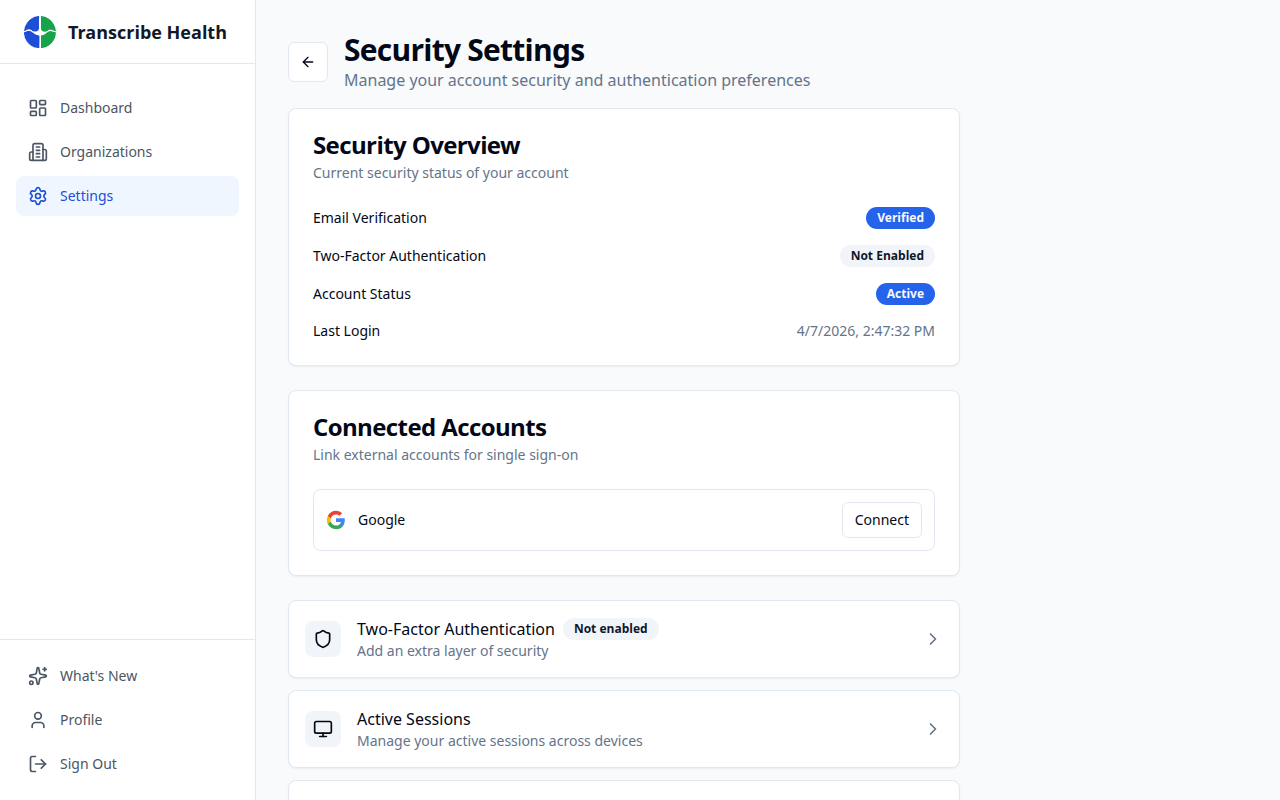
1. Navigate to security settings
From your dashboard, click Settings in the sidebar. You'll see your account security options.
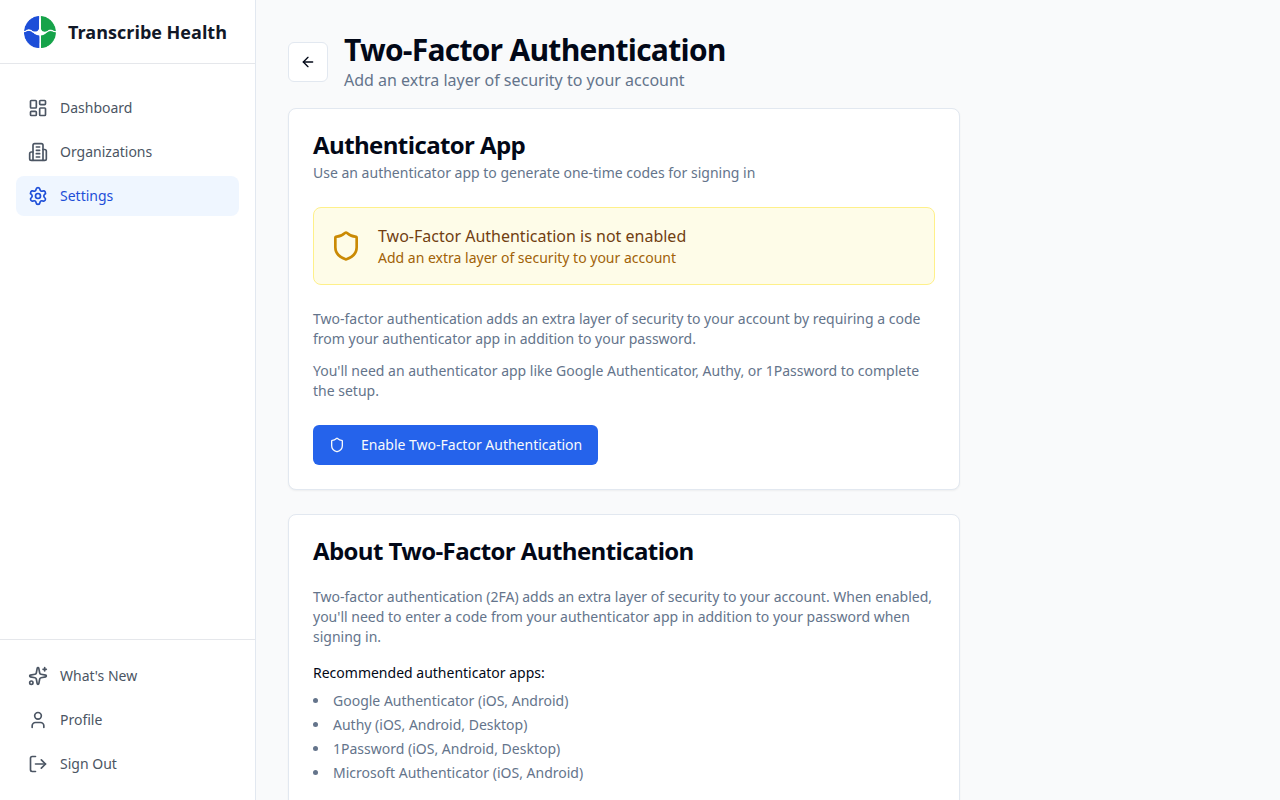
2. Open the MFA setup page
Click the MFA / Two-Factor Authentication option to open the setup page.
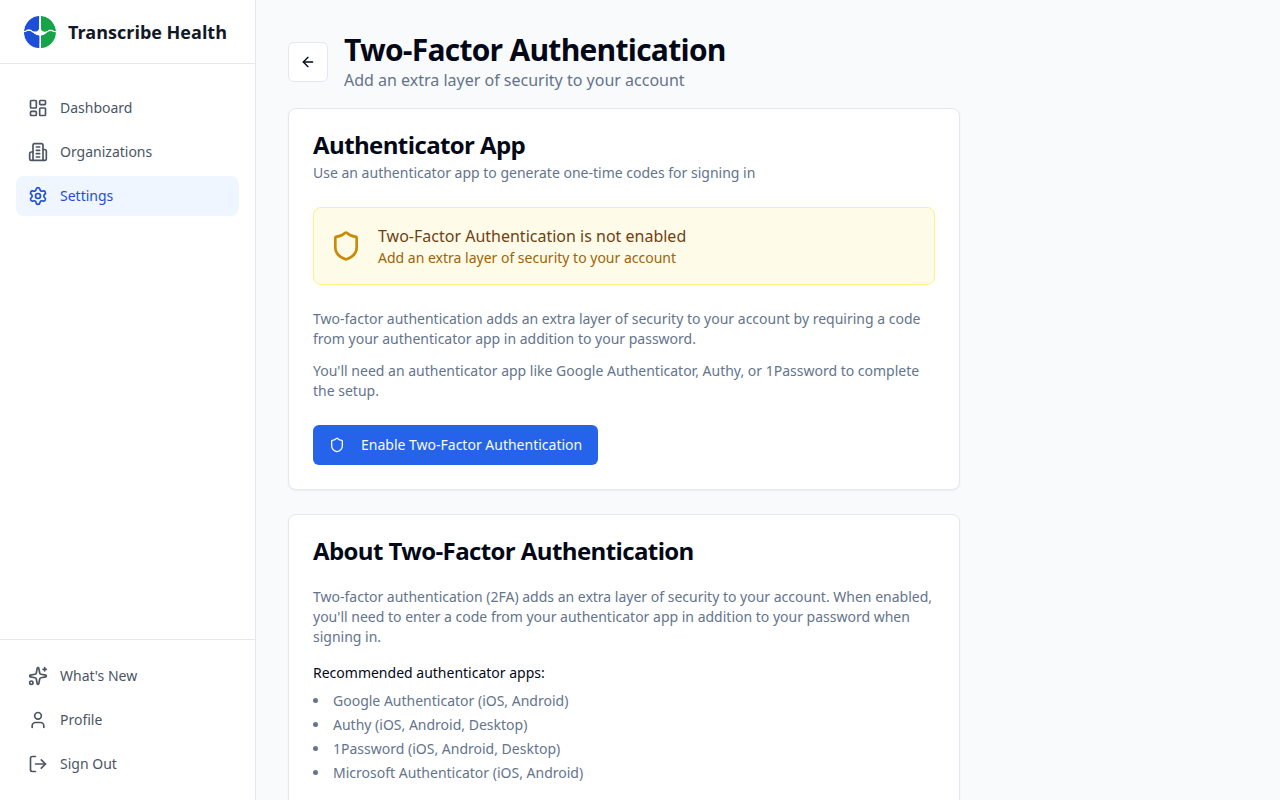
3. Start MFA setup
Click Enable Two-Factor Authentication to begin the setup process. A QR code will be displayed on screen.
4. Scan the QR code
Open your authenticator app and scan the QR code. This links your Transcribe Health account with the app.
If you can't scan the QR code, click Copy Secret to see the secret key, then type it into your authenticator app manually.
5. Enter the verification code
Your authenticator app will now show a 6-digit code that changes every 30 seconds. Enter the current code to verify the setup.
6. Save your recovery codes
After verification, you'll be shown a set of recovery codes. Save these in a secure location. If you lose access to your authenticator app, you'll need a recovery code to sign in.
Each recovery code can only be used once.
Signing in with MFA
After enabling MFA, the sign-in flow adds one step:
- Enter your email and password as usual
- Enter the 6-digit code from your authenticator app
- You're signed in
Disabling MFA
If you need to disable MFA, go to Settings > Security > MFA and click Disable MFA. You'll need to enter your current password to confirm.
Note: Your organization may require MFA for all members. In that case, MFA cannot be disabled by individual users.
Related Articles
Manage Organization Settings
Configure your organization's details, consent requirements, data retention, and more.
Account & SettingsManage Team Members and Roles
Invite members, assign roles, manage permissions, and organize teams in your organization.
Account & SettingsCompliance Overview
View your organization's HIPAA compliance status, signed documents, and security features.
Can't find what you're looking for?
Our team is here to help. Reach out and we'll get back to you within 24 hours.
Contact Support