Manage Document Templates
Create, edit, and organize document templates for generating clinical documents from transcriptions.
Document templates define the structure of clinical documents generated from your transcription sessions. Templates can be SOAP notes, referral letters, discharge summaries, or any custom format your practice uses.
Built-in system templates
Transcribe Health includes built-in system templates that are available to all organizations. These platform templates are identified by a "TH" badge in the template list and cannot be edited or deleted.
Current built-in templates include:
- Patient Instructions - Generate take-home instructions for patients based on the encounter
- Referral Letter - Create a referral letter summarizing the clinical encounter
System templates use your existing session documents (SOAP notes, transcripts, etc.) as context, so the AI produces more accurate and relevant output.
Quick-action buttons
The most common system templates are available as quick-action buttons directly in the document toolbar. Instead of opening the full template picker, you can click:
- Patient Instructions - One-click generation of patient instructions from your notes
- Referral Letter - One-click generation of a referral letter from your notes
These buttons require either a recorded transcription or at least one existing document in the session to use as context.
Hiding built-in templates
If you prefer to see only your custom templates, use the "Hide built-in" toggle in the template list or document creation dialog. When enabled, only templates created by you or your organization are shown. Toggle it off again to restore the full list.
Accessing templates
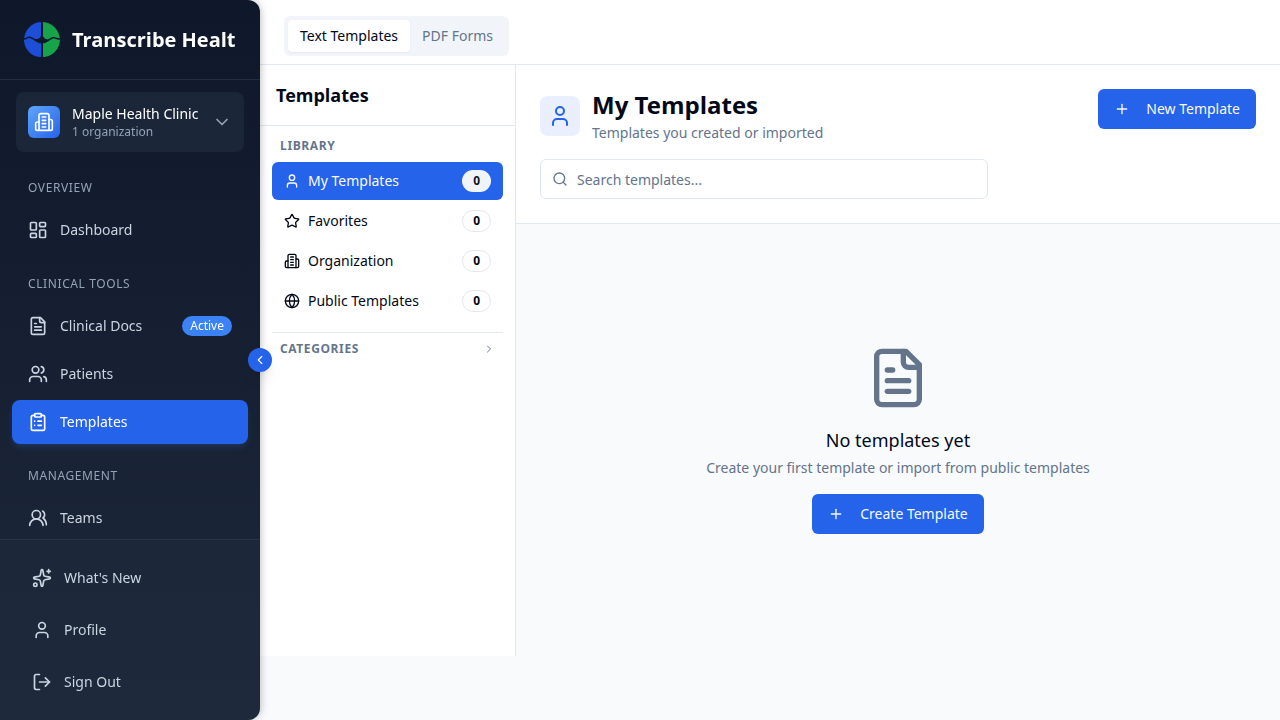
Navigate to Templates in your organization sidebar. You'll see your templates organized by view - My Templates, Favorites, Organization, and Public.
Creating a template
1. Click New Template
Click the New Template button to open the template editor.
2. Configure template settings
- Name - A descriptive name (e.g., "SOAP Note - Family Medicine")
- Category - Select or create a category for organization
- Visibility - Choose whether the template is private to you or shared with your organization
3. Define the template structure
Use the editor to define sections and content. Templates support:
- Static text - Headers, labels, and boilerplate content
- AI-generated sections - Sections that are automatically filled using the transcription content
- Placeholders - Fields to be filled in manually (patient name, date, etc.)
4. Save the template
Click Save to make the template available for use in transcription sessions.
Using templates in sessions
After completing a transcription session:
- Open the session
- Click Generate Document or use a quick-action button
- Select a template from the list (if using Generate Document)
- The AI will populate the template using the transcription content and any existing session documents as context
- Review and edit the generated document
Organizing templates
- Categories - Group templates by type (Progress Notes, Referrals, Procedures)
- Favorites - Star frequently used templates for quick access
- Copy - Duplicate an existing template to use as a starting point
Sharing templates
Organization-shared templates are available to all members. Only admins and owners can modify shared templates. Private templates are visible only to you.
Related Articles
Start a Transcription Session
Learn how to create and run a real-time AI transcription session for clinical encounters.
FeaturesUse Real-time Translation
Translate your live transcription into another language during a streaming session.
FeaturesManage Patients
Add, search, and manage patient records in your organization.
Can't find what you're looking for?
Our team is here to help. Reach out and we'll get back to you within 24 hours.
Contact Support