For clinics using OSCAR
Your notes, in the chart you already use.
Prepare your clinical notes in Transcribe Health. Send them to the right OSCAR patient chart, ready for you to review and sign there.
Australian access is being prepared. Contact us to confirm availability.
The workflow
From patient link to chart note.
- 01
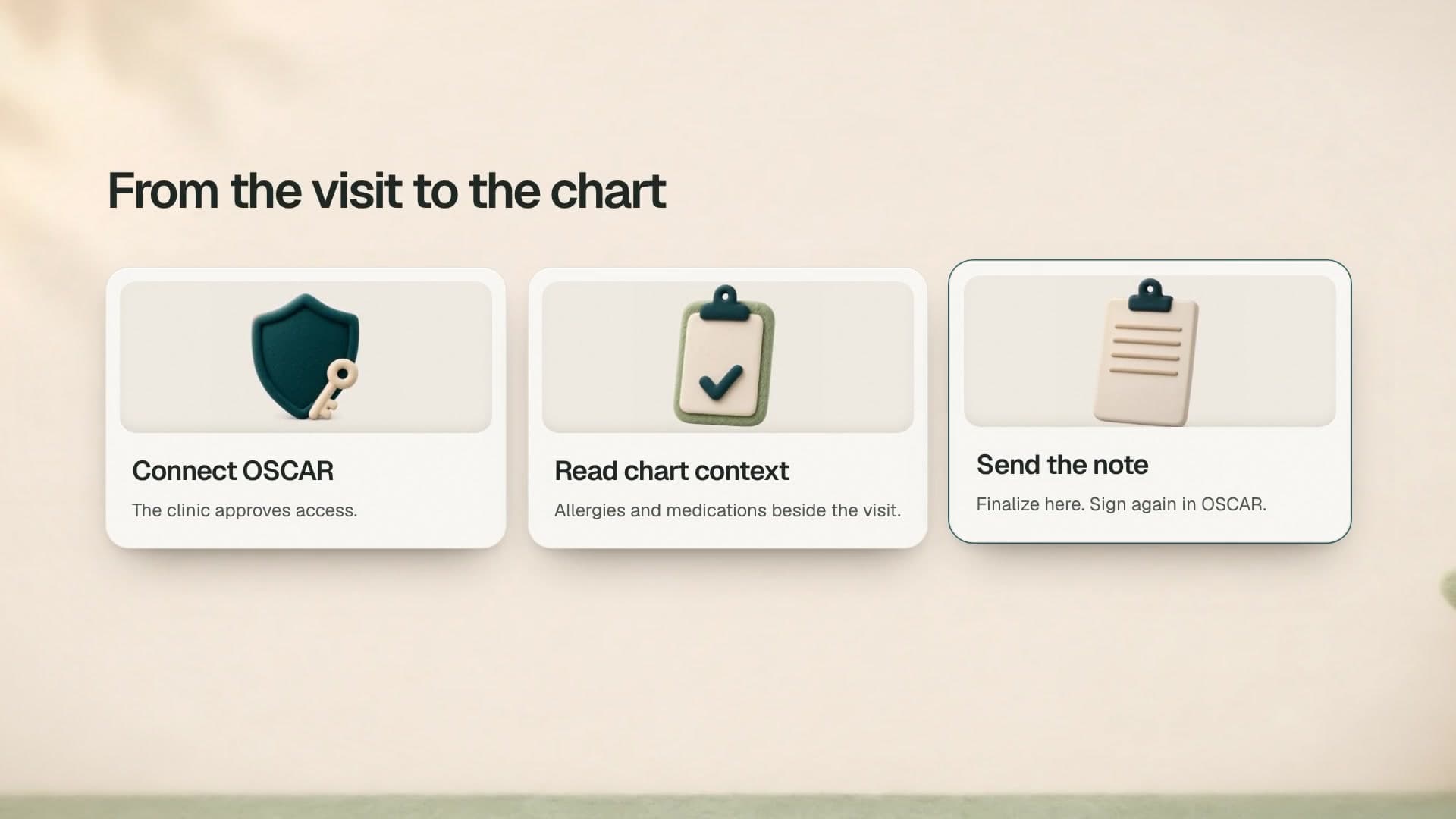
Connect OSCAR
Add your OSCAR server and REST client in Integrations. Approve access on OSCAR’s own consent screen.
- 02
Link the patient
Search OSCAR by name. Select the matching chart and link it to the patient in Transcribe Health.
- 03
See chart context
Open the EHR section on the patient’s page to load allergies, reactions and medication doses from OSCAR.
- 04
Send your note
Review your note, then push it to the linked chart. Open OSCAR to review and sign the unsigned note.
From OSCAR to Transcribe Health
Allergies and medications, from the linked chart.
Open the EHR section on the linked patient’s page in Transcribe Health. Load their OSCAR chart context before reviewing your note.
- Allergies with severity and reaction, where recorded.
- Current medications with dose information.
OSCAR’s problem list is not available through this connection. Check OSCAR for the full chart.

Sam Lee
Chart context from OSCAR
- Allergies
- PenicillinSevere
- Reaction: hives
- Current medications
- Lisinopril 20 mg
Example only. Fictional patient data.
From Transcribe Health to OSCAR
In the chart. Still yours to sign.
Review the clinical note in Transcribe Health, then send it to the linked OSCAR patient chart. The final sign-off stays in OSCAR.
- Plain text
- The note title and content are sent as plain text. Rich-text styling does not carry over.
- Saved unsigned
- A successful push saves a chart note. It does not sign the note for you.
- Review and sign in OSCAR
- Open the patient’s chart in OSCAR. Check the filed note and sign it there.

[Follow-up visit]
Sam Lee attended for a follow-up visit.
Plan: Follow-up discussed with Sam Lee.
Example note. Review and sign in OSCAR.
For OSCAR admins
Have your REST client ready.
Your OSCAR admin or hosting provider can help prepare the connection. You will need these before connecting in Transcribe Health.
Talk through your setupYour OSCAR server address
An HTTPS address with OSCAR’s REST API available.
An OSCAR REST / OAuth client
The consumer key and consumer secret from your OSCAR REST client registration.
An OSCAR account to approve access
Sign in to OSCAR in the same browser. The OAuth 1.0a connection opens OSCAR’s own consent screen.
Before you connect
A few practical answers.
Will it work with our OSCAR instance?
Your instance needs OSCAR’s REST API and an OAuth 1.0a client. Ask your OSCAR admin or hosting provider to confirm access. Contact us to check your setup before connecting.
Which chart information can we see?
Allergies, including severity and reaction where recorded, and current medications with dose information. Load them from the EHR section on the linked patient’s page. The OSCAR problem list is not available through this connection.
Does sending a note sign it in OSCAR?
No. Notes are saved in the linked patient’s OSCAR chart as unsigned plain text. The clinician reviews and signs the note in OSCAR.
How does patient information move?
Transcribe Health reads allergies and medications from the OSCAR instance your clinic connects. It sends the notes you choose to the linked patient chart. See our privacy and security pages for data handling details.
Keep OSCAR. Put your notes in it.
Contact us about your Australian clinic and EMR. We will confirm access, available features and the required processing arrangements.